Download and install BIMSpeed
Use the official BIMSpeed download page. It offers an online ZIP and offline EXE installers, release notes and earlier releases. Select EN in the website language menu for English.
1. Before downloading
- Check your Revit release year, such as Revit 2024 or 2025, in Revit's About information.
- Save your work and close all Revit windows before running an installer.
- Have your BIMSpeed account ready for sign-in after installation. See Create an account or Forgot password.
- Connect to the internet to download files; the online installer also needs a connection while installing.
2. Choose an installer
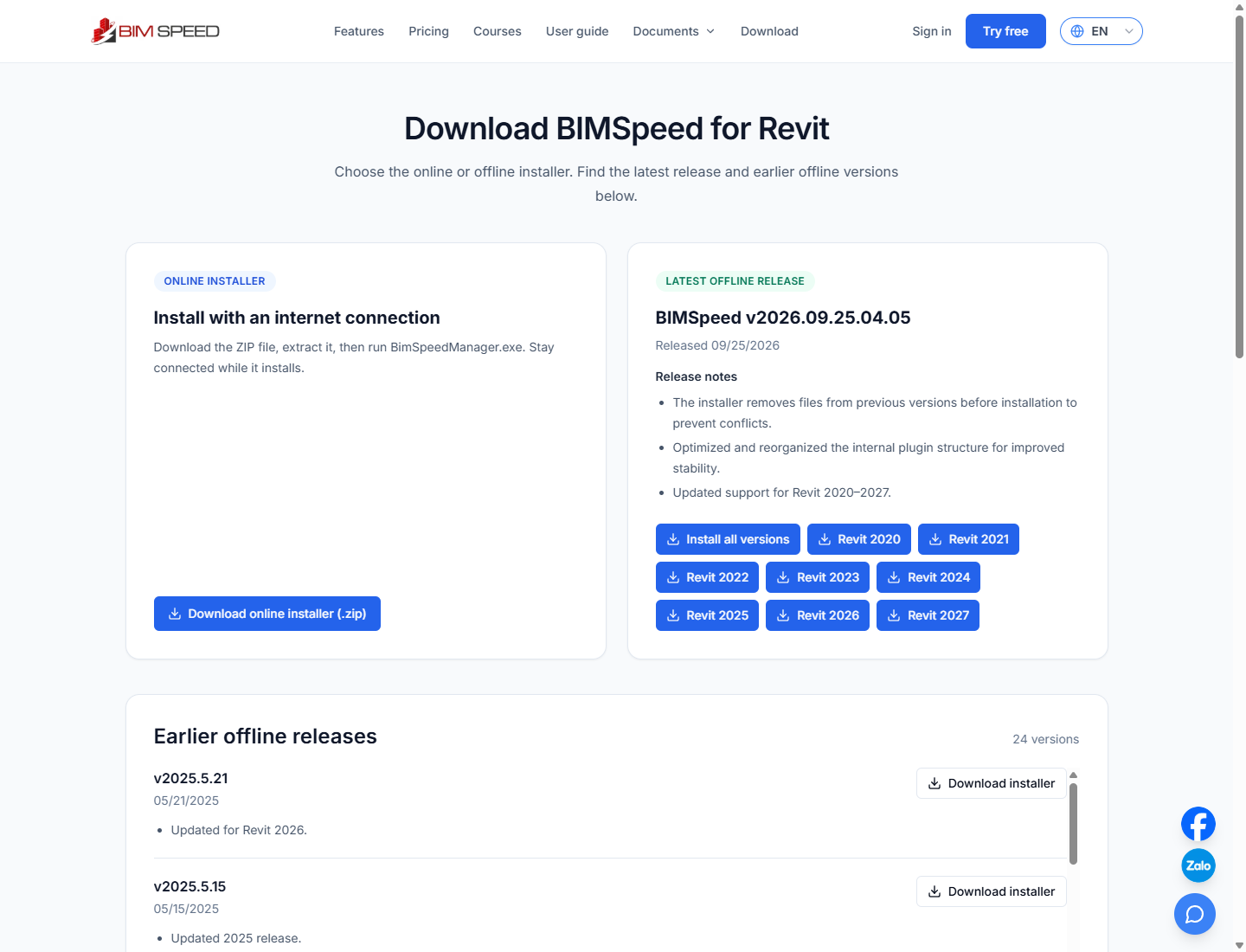
Live website captured on September 28, 2026. Release numbers, dates and Revit options can change; use the choices currently shown on the download page.
| Option | When to use it | File / action |
|---|---|---|
| Online installer | Internet is available throughout installation | Download ZIP, extract it and run BimSpeedManager.exe |
| Offline for one Revit version | You want an installer for a specific Revit year | Choose the matching Revit button and download the EXE |
| Install all versions | You need the combined installer for multiple versions | Use this button if offered |
| Earlier offline releases | Support or your workflow requires a particular release | Check release number, date and notes before downloading |
“Offline” describes the installer; it does not mean that sign-in and every BIMSpeed feature work without internet access. New users should start with the latest release unless a particular version is required.
3A. Download and run the online installer
- Click Download online installer (.zip) in the online installer card.
- The link opens Google Drive. If it shows a preview, use Drive's download button.
- Wait for the ZIP download to finish. Open your browser's downloads using Ctrl+J, or check your Downloads folder.
- Right-click the ZIP, choose Extract All, select a destination and extract the files.
- Open the extracted folder and find BimSpeedManager.exe. Keep its accompanying files together; do not run it from the ZIP preview.
- Run BimSpeedManager.exe and stay connected. Follow the Revit version options and instructions displayed by the installer.
- Wait for completion, then reopen Revit.
3B. Download and run an offline installer
- Read Release notes in the Latest offline release card.
- Click the year of Revit you actually use. For example, choose Revit 2025 for that application, regardless of the current calendar year.
- For a combined installer, select Install all versions when offered.
- Wait for the download and check its filename. A version-specific file looks like BimSpeedSetup-Revit2025.exe; the combined file may be BimSpeedSetup.exe.
- Close Revit, run the EXE and follow its instructions. Ask your administrator for installation permissions on a managed computer if required.
- Wait for completion and open the matching Revit version.
You do not need both online and offline installers for the same setup. Choose the method that suits your computer and connection.
4. Download an earlier offline release
Scroll to Earlier offline releases, find the release number and date, read its notes, and click Download installer or the corresponding Revit button. The release list has its own scroll area when long.
Do not assume an older release supports every Revit year. If you are unsure or need to downgrade, provide support with your current Revit and BIMSpeed versions before installing.
5. Check installation
- Open the Revit version you selected and a suitable project.
- Look for BIMSpeed ribbon tabs such as BimSpeed.GEN, BimSpeed.ARC, BimSpeed.STR and BimSpeed.MEP, depending on the tools installed.
- Sign in with your BIMSpeed account when prompted. If you purchased a license, use the account that created the order.
- See online payment if you need to purchase access.
The How to install section on the download page includes a video with Vietnamese audio. New installer layouts may differ from the video.
6. Download and installation troubleshooting
| Situation | What to do |
|---|---|
| Offline releases missing | Wait for loading, refresh and check your connection; retry later or contact support if necessary |
| Download clicked but no file | Check the new tab and Ctrl+J; avoid starting another download while one is active |
| Google Drive limit or download error | Retry later or use a suitable offline installer; report a broken link to support |
| Damaged ZIP or missing BimSpeedManager.exe | Verify completion and extract all files; download again from the official page if damaged |
| Online installer stops downloading components | Check your connection or use the corresponding offline installer |
| Windows/SmartScreen blocks execution | Check the download source and warning details; consult support or your administrator if the file cannot be verified |
| BIMSpeed tabs missing | Restart Revit and verify the installer matched its year; capture any remaining error |
| Sign-in fails | Check the account email and use password recovery if needed |
For help, send your Windows version, Revit year, installer filename, online/offline method and error screenshot through the website or to hoang.tran@bimspeed.net.