Statistic Rebar
Prepare partitions, bar numbers and length data before scheduling. Use selection/filter tools to identify the intended bars, and choose Shape Images or 2D details for the required presentation. Each section distinguishes data written to the model from display changes.
Verification limits are stated for each tool. Dialog captures establish visible controls; created or edited elements require separate checks in the model, Properties and saved RVT.
Logo, Feedback and YouTube actions are explained in the common dialog footer.
Schedule Rebar
Prepare Partition, numbering, same-Mark member counts, segment lengths and images before using a schedule template. Open Schedule Rebar, choose the schedule type and review the inputs below. A named view without verified data and filters is not a finished quantity schedule.
| Field / button | Units, choices and scope | Effect and verification |
|---|---|---|
| Schedule Type | Stair / Beam / Floor / Foundation / Column / Wall / Lintel / Summary | Selects corresponding content. Summary does not apply the member-prefix filter used by the other groups |
| Name | ViewSchedule name | Use a valid recognizable name. Dots may be appended to avoid duplicates; inspect the actual Browser name |
| Paper Size | A1 / A2 / A3 / A4 | Stored in settings. The reviewed creation flow does not use it to automatically create a sheet or resize columns; verify the actual sheet/template/layout in Revit |
| Coefficient | Checkbox enabling its numeric input; not mm or paper scale | When enabled, processes project-wide Rebar of the corresponding host type and writes BS_HESONOITHEP. Initial selection does not limit that write |
| Coefficient value | Splice coefficient, source default30 | Use the project requirements and verify stored values; the default is not a design conclusion |
| Column / Beam / Floor / Wall / Foundation / Stair / Lintel Prefix | Text filter per member group | The chosen group replaces the first existing template filter's value with its prefix. This affects filtered data, not only the schedule name. Inspect Schedule Properties → Filter, especially with different Partition conventions |
| Run | Accepts/stores settings and creates the schedule | Requires a suitable schedule in the version-appropriate BimSpeedTemplate.rte content. Open the actual ViewSchedule afterward |
| Close / ✕ | Closes; settings may be retained | Settings persistence is separate from schedule creation and RVT saving |
Coefficient processing happens before obtaining the template schedule. A failed schedule creation therefore does not prove coefficients were left unchanged; inspect the parameter and Undo history when enabled. Leave it off when only testing layout/content.
After Run, find the view under Schedules/Quantities. Inspect Fields, Filter, Sorting/Grouping and itemization. Compare at least one row with actual Rebar: set count, set Quantity, same-Mark member count and IGNORE_THIS represent different data. For blank/zero results, check prefix/filter, parameter bindings and prepared data; a created view alone does not validate its quantities.
When running on a sheet, Add a schedule to the sheet can place an instance at the sheet origin. Select and Move it to the intended layout. Choosing No still requires checking the Browser schedule. Paper Size alone does not establish a correctly sized titleblock/sheet.
Test one schedule in a model copy, record its name/ID and a row comparison before expanding scope. Save a new RVT and reopen the schedule to verify data/images. Creation, row-data verification and reopening evidence are identified separately when confirmed.
Rebar Images
Create rebar schedule images
Rebar shape-image workflow and Image parameter verification · Settings reference. The C-01 partition case verified images on 9/9 bars: 3 new images, 6 reused and 0 failed.
Manage Rebar Number
Open a view containing the bars to renumber. Preselection may contain Rebar or their hosts; the table starts from eligible Rebar in the active view and narrows it to that selection when supplied. Without preselection it uses the view's Rebar. If no eligible partition is found, check visibility and Partition.
- Select a Partition Name to display its table. The checkbox beside each partition determines which partitions Apply processes; highlighting a name is separate from checking it.
- Identify groups by Image, Bar Segment Length, Shape Name, Type and Current Number. Selecting a row can select/show its elements in Revit. A missing image does not mean a bar is missing.
- Edit New Number. The ascending/descending buttons for Number / Segment Length / Type also refill New Number consecutively from 1 in the resulting order. They do more than sort the display; review the entire column afterward.
- Uncheck partitions to leave out. Resolve red conflict indications before Apply. With no checked partition, the operation does not run. Apply updates checked partitions' numbering schemes rather than only the highlighted row.
- Select the same representative ID in Properties and inspect a schedule with the same Partition. Check the new number, duplicates and other bars in its numbering group. A group-number change can affect bars sharing that number in the partition, including bars outside the initial selection; selection is not an absolute write-scope boundary.
Test one partition in a model copy, record IDs/old numbers, Apply, verify Undo and reopen the saved RVT when satisfied. Apply/readback remains unverified in this supplement.
Shape Setting
These settings control Rebar Shape 2D, separately from Shape Images. Text Size chooses annotation size. Stirrup Tag / Standard Tag select loaded tag types. Create Tag enables tagging; Value/Length enables segment labels. Solid / Dashed selects line style. Line Weight uses levels 1–16; 0 retains project weight where offered. The shared Detail Components subcategory can affect other shapes using that style.
OK saves settings for subsequent placement; it does not itself create Rebar or a detail. Close closes. Check a newly placed detail, labels, tags and Object Styles; do not assume old details update.
Observed dialog
This is the actual English production dialog in Revit 2024. No settings were applied. The dialog alone does not prove that a 2D detail was placed in the view.
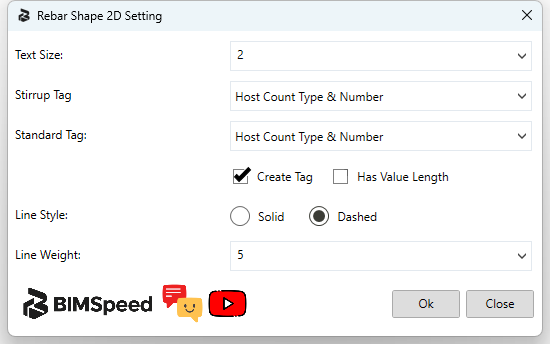
1. Text size and the two tag types. 2. Tag/length switches, line style and line weight. 3. OK stores settings; Close exits. The original full host capture is retained in the review evidence but was excluded from publication because a taskbar preview covered part of it.
Rebar Segment Length
This command has no manual length-entry dialog. Current source binds Bar Segment Length and Total Bar Segment Length instance parameters and scans the whole model, including Rebar, Area and Path Reinforcement. Selection/current view is not its scope limit.
Both are length fields displayed in project units. Check a single bar, uniform set and varying set. A varying total cannot be assumed to equal Quantity times one representative length. Add both fields to a schedule, find blank/zero values and review tool warnings. A fallback may use Revit Bar Length; a nonzero value alone does not validate segment calculation. Source restores SharedParametersFilename in finally; the loaded DLL behavior remains to be checked.
Manage Images
The window lists ImageTypes already in the project, with No., Partition, Name and thumbnails. Select a row to inspect its image/path. This is separate from generating new rebar-shape images.
| Control | Effect and verification |
|---|---|
| Open Folder | Opens the project's image-cache folder in File Explorer if it exists; it is not an arbitrary-folder picker. A missing folder can produce a message |
| Image Path | Path of the current image; identify the file before editing. Changing displayed path text does not prove an embedded Revit image changed |
| Search | Filters names in the list; does not limit Import scope |
| List / thumbnail / preview | Identify Name, Partition and content. Image Partition information does not replace checking the bar's own Partition |
| Reload Data | Rereads bitmaps from existing paths and refreshes the current preview. Does not automatically discover every disk file or reassign bar Image parameters |
| Edit | Refreshes data and opens the current image in Paint. Save there, return and Reload Data; that alone does not establish an updated embedded Revit image |
| Import | Rebuilds/imports images and assigns Image references to project Rebar/RebarInSystem by stored image names; scope is broader than the selected row or Search results |
Check Import scope first: the reviewed flow attempts to delete all existing project ImageTypes before rebuilding/importing and assigning reinforcement images. Images unrelated to reinforcement and their dependent elements may therefore be affected. Do not treat Import as replacing only one selected thumbnail. Use a model copy, record ImageTypes/placed images, verify representative bars and non-rebar images afterward, then compare Undo. Keep Edit/Reload separate from Import when only editing a disk file.
Saving an external image and saving the RVT are separate actions. Once satisfied, save a new RVT and reopen it to inspect embedded images and bar Image parameters. Import/Edit/Undo remains unverified here; the scope warning describes the reviewed implementation rather than a new runtime pass.
Count Element
Select Project / Active View / Selection, Column, Beam, Slab, Wall, Foundation, Filter by Level (<None> disables level filtering), and Assign to Parameter. All disables individual category switches. The target must be a writable integer instance parameter. OK writes same-Mark member counts to reinforcement; Close closes.
Source groups hosts by category + Mark. The lowest-ID reinforced host is representative: its bars get IGNORE_THIS = No, while duplicate hosts get Yes. Same-Mark member counts include the whole model and hosts without reinforcement. Processing scope and counting scope differ. Level filtering uses the elevation nearest the bounding-box centre.
Check two same-Mark hosts and an unreinforced one. Verify member count and IGNORE_THIS; use the representative filter in schedules to avoid multiplying repeated reinforcement twice. Parameter writing remains unverified in this supplement.
Rebar Partition
Assign Rebar partition
Set Partition from the host Mark · Settings reference. Host Mark C-01 to reinforcement Partition C-01 was verified.
Filter Rebar
The tool filters project-wide Rebar elements, including bars outside the current view. Enabled conditions with selected values combine with AND. Enable a row to use its Value selector; disabled rows do not participate.
| Type / control | Values and use |
|---|---|
| Diameter | Entries d … in mm, derived from bar-type diameters; do not rely only on a Dxx type name |
| Partition | Exact partition name. The list can include Fabric numbering partitions; that does not establish Fabric output from this Rebar-class filter |
| Rebar Shape | Loaded project shapes; an unused shape can return0 elements |
| Host Mark | The reinforcement host's Mark, separate from the bar's own Mark |
| Rebar Style | Styles such as Standard or Stirrup/Tie from the list |
| Reinforcement number | Rebar number, separate from set Quantity, host count or element count |
| Host Type | Host categories StructuralFraming, StructuralColumns, StructuralFoundation, Floors, Walls; not a particular host Family/Type |
| All | Enables/disables conditions, not all bars. Enabling every condition can narrow results; inspect each Value |
| SelectedElements | Matching element/set count, not physical-bar total or visible-bar count |
| Select | Recalculates the filter and updates selection. Missing valid conditions or empty results produce a message; clearing every checkbox does not select all Rebar |
| Isolate | Recalculates the filter, then temporarily isolates results in the active view. Changing Value after Select can change the isolated set |
| Reset | Resets active-view Temporary Hide/Isolate and attempts the view isolated through this tool. If the earlier view retains temporary mode, return there and use Revit's reset |
Exercise on a copy: enable only a known Partition, Select and compare IDs/set count. Add Diameter and verify the narrower result; Isolate, inspect a representative bar/Properties, then Reset. Project Rebar/Quantity and geometry should remain unchanged during selection/display operations. If bars remain missing, check category, filters, crop and element hiding. Actual Select/Isolate/Reset evidence is identified separately when verified.
Group Rebar
Preselect Rebar or pick and Finish. The command stores a group key in Extensible Storage and writes summed Quantity to BS_REBAR_QUANTITY_IN_GROUP. It does not create a Revit Model Group instance.
Existing membership triggers a reassignment question; declining cancels. Source recalculates old-group quantities after reassignment. Compare summed Quantity rather than set-ID count, and inspect both groups when moving a set. The target parameter must exist. Runtime grouping/reassignment remains unverified.
Select Rebar
Choose Rebar Number / Rebar Shape and Host / Active View, click Select, and pick the sample bar/host requested by the prompt. This selects elements; it does not renumber, reshape or move them. Compare IDs/counts against a known group and test equal numbers on different hosts to distinguish scope. Runtime selection remains unverified.
Rebar Visibility
Manage rebar visibility
Rebar visibility in the active view · Settings reference. Both all-element and selected-set scopes were exercised; the guide distinguishes Revit 2027 options from other versions.
Rebar Shape 2D
Create 2D rebar shapes
Pick reinforcement and place a 2D shape · Settings reference. The picking flow was captured; the resulting 2D detail still needs verification in a suitable view.
Reinforeced Symbol
The registered Reinforeced Symbol button invokes BeamTools, separately from BimSpeedRebar's Rebar Shape 2D. Pick a bar in a 2D view, follow placement prompts and Escape to end the loop. Matching family content is required. Evidence for the other Shape 2D command does not verify this symbol command. Placement remains unverified.
Match Rebar
Choose Multiple Pick / Select Rebar, enable the same-bar restriction if needed, and enable Copy all parameters only when additional parameter copying is intended. Run starts source/target picking. Compare target IDs and numbers before/after; with Copy all enabled, inspect other data too. Undo to restore. Runtime matching remains unverified.
Rebar Position
Select Selection / Active View / Project. Filter slab top/bottom enables Top parameter/value and Bottom parameter/value. Filter slab X/Y enables parameter/value pairs for both directions. OK classifies and writes data; Close cancels. This assigns position metadata rather than moving bars between layers.
Use writable Rebar text parameters and distinct values such as TOP/BOT and X/Y. Inspect a representative bar for each layer/direction in Properties. Check inclined bars and other hosts separately; view axes, global axes and host axes are not interchangeable without verification. Runtime classification remains unverified.
Observed controls
Actual English UI in Revit 2024, without applying. Choose the scope, then an existing target parameter and the value to write. If parameter lists are empty, prepare writable instance Text parameters on Rebar and reopen the tool; a Value box does not create a new parameter.
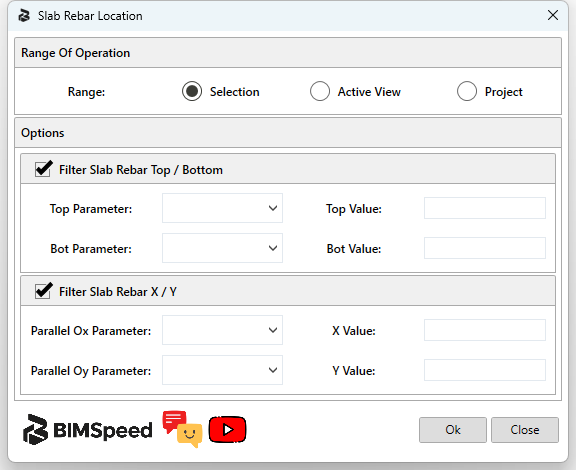
1. Selection, Active View or Project. 2. Enable layer filtering and map Top/Bot parameters and values. 3. Enable direction filtering and map Parallel Ox/Oy parameters and X/Y values. 4. OK writes data; Close exits. This capture does not verify a successful classification write.