Revit to ETABS — connection, units and materials
Open BimSpeed.STR → Design → Revit To Etabs after preparing the analytical model. The exporter reads analytical members and panels; concrete geometry alone is insufficient. Check members, panels, stories and materials first.
Choose an ETABS session
| Control | Use and effect |
|---|---|
| Current Etabs Opening | Uses the ETABS instance detected through COM. Enabled only when a connection is available; the status identifies its version. Save an EDB copy before using a session containing existing data. |
| Start Etabs | Starts an installed ETABS version. Select a version or use ... to choose ETABS.exe, not an EDB model. |
Version list / ... | Lists detected installations. Browse to a valid executable when the list is empty. A missing executable or failed startup stops the command. |
| Ok / Close | Ok proceeds to export settings. Close cancels session selection. Opening this window does not create an EDB result. |
Export settings
| Setting | Decision and verification |
|---|---|
Template ... | Chooses an EDB in the settings window, opens it in ETABS and loads its material list. This differs from selecting the executable in the first window. Use a template copy. |
| Force | T, kgf, kN; keep consistent with the ETABS material and load data. |
| Length | m, mm; verify a known span after transfer. Do not manually scale geometry to compensate for a unit mismatch. |
| Moment | Read-only combination of force and length units. |
| Revit / ETABS material | Select a corresponding pair and press +. Select a mapping and press - to remove it. Matching names do not prove matching material properties. |
| Story | Select the reference story from the Revit model and check elevations and story spacing. |
| Export grid excel | Exports grid data for inspection in Excel; it does not export an EDB model. |
| Ok | Confirms the transfer data. Resolve material, story and unit validation messages before continuing. |
| Save | Saves the currently open ETABS model as EDB, not RVT. The Start Etabs workflow also requests an EDB destination after transfer. |
| Close | Closes settings. Opening a template may already have changed the model open in ETABS. |
Inspect the result
Reopen the saved EDB and compare member/panel counts by story, a known span, axis direction, representative sections and materials. Review missing connections using Create/Check Analytical before using the result.
If template opening fails, open the EDB copy directly in the same ETABS version. The warning may identify ETABS and ETABSv1 versions; provide the complete message to support if they are incompatible. Do not manually replace DLLs to bypass the failure.
This practice set has no inspected EDB result. The settings reference follows the current command flow; an open connection window does not prove successful model transfer.
Work through explicit checkpoints
Save copies of the RVT and EDB before connecting. Confirm Revit contains Analytical Members/Panels, not only physical beams and floors. Save any current ETABS work before choosing a template because loading a template may replace ETABS's current model. Use Current Etabs Opening for a detected session or Start Etabs for an installed executable. The executable picker does not select an EDB.
In settings, choose the copied EDB template and check Force, Length and the read-only Moment combination. If changing m to mm, verify a known span in ETABS rather than relying only on the unit label. Pair each Revit material with its ETABS material and press +. Review the pairs before Ok. − removes the selected mapping, not a project material. If the required destination material is missing, verify the template instead of pairing a similarly named material arbitrarily.
Choose Story and compare the reference level and elevations. Export grid excel helps inspect grids; it does not replace model transfer. After Ok, check storeys, member/panel counts, one span and one representative material in ETABS. Save writes the EDB; reopen a copy to verify it. Saving the RVT remains a separate Revit action.
If a connection option is unavailable
Check that the ETABS session is open normally and its version is supported by the available list. If executable discovery fails, use ... to select an existing ETABS.exe. Cancelling the file picker creates no connection. Without compatible ETABS, EDB transfer and verification cannot be completed, while Revit analytical preparation remains possible. A grid spreadsheet, input EDB template or UI screenshot is not a successful export result.
Connection window in Revit 2024
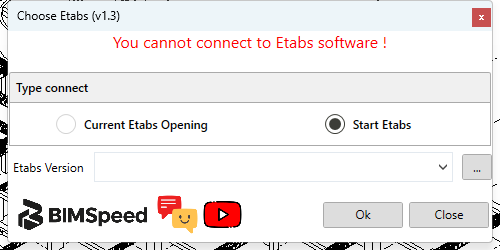
① The red status reports no ETABS connection. ② Choose an existing or new session; the existing-session option requires detection. ③ Executable list and ... picker. ④ Ok/Close. The captured list is empty and there is no exported EDB; resolve the connection before transfer settings.
The bottom-left logo/Feedback/YouTube icons are explained under Design help buttons.