Set Rebar Visibility — Practical guide
Recorded in Revit 2027.3 with the English interface. Number 1 identifies the controls or result discussed immediately above the image. Click an image to open its full resolution.
Verification scope
Verified all-rebar and selected-set visibility in the active view. Revit 2027 exposes Set Unobscured; Solid is unavailable. Saved model contains the final visible state.
Settings reference · Practice RVT · All five guides
Video — English (2:26)
English transcript · English subtitles SRT · Chapter titles
Google Gemini Charon narration, directed in neutral American English. Chapter cuts, brief zooms and highlights follow the measured speech. Enable English subtitles in the video player.
1. Open Rebar Visibility (0:00)
Open BimSpeed dot S T R, expand Rebar Visibility, and choose Rebar Visibility. This command controls whether reinforcement is visible through its concrete host in the active view. It does not create or delete bars. We will compare all reinforcement, selected reinforcement, and the view visibility property.
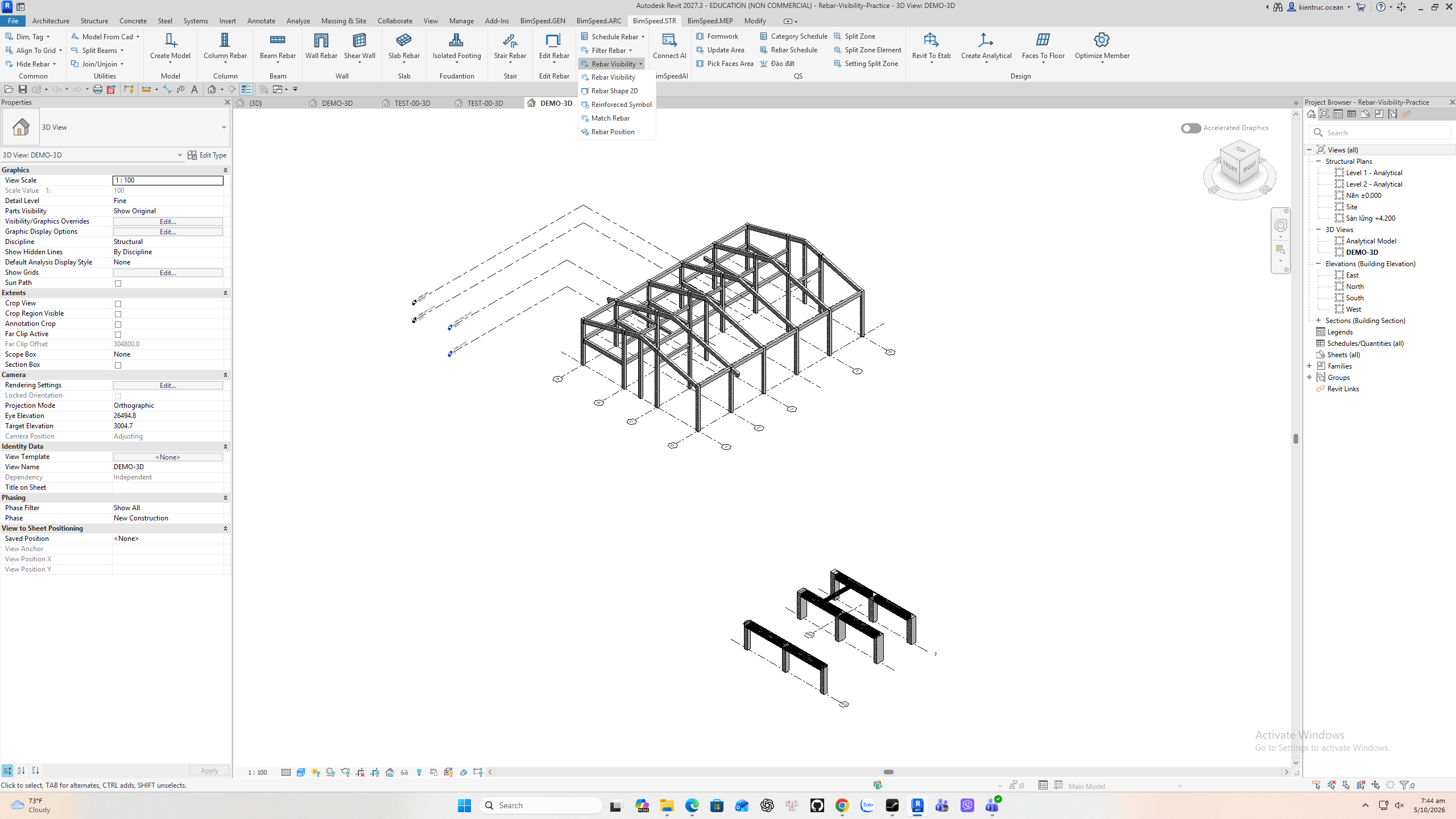
2. Hide bars behind the host (0:21)
For the first case, clear the selection. Open the command and uncheck Set Unobscured. Click OK to apply, then Close. With no selection, the command considers reinforcement in the document and changes its state in the active view. A host can now obscure its bars. This does not switch off the Structural Rebar category.
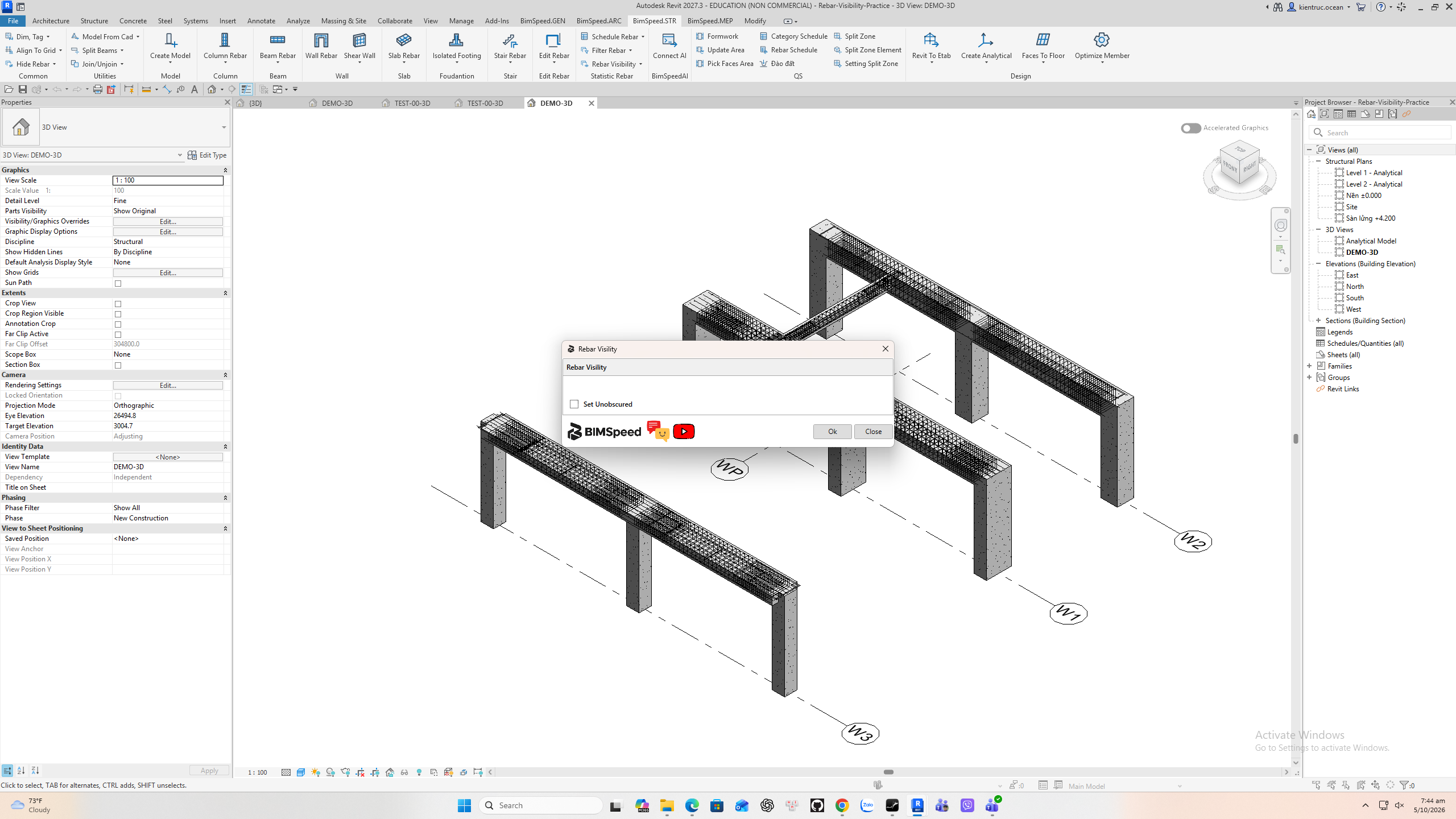
3. Inspect the obscured result (0:42)
The concrete now obscures reinforcement inside these beams. Bars outside a host may still be visible. If you expected every bar to disappear, use view category visibility for that different task. Unobscured controls visibility through the host; it does not override every view setting.
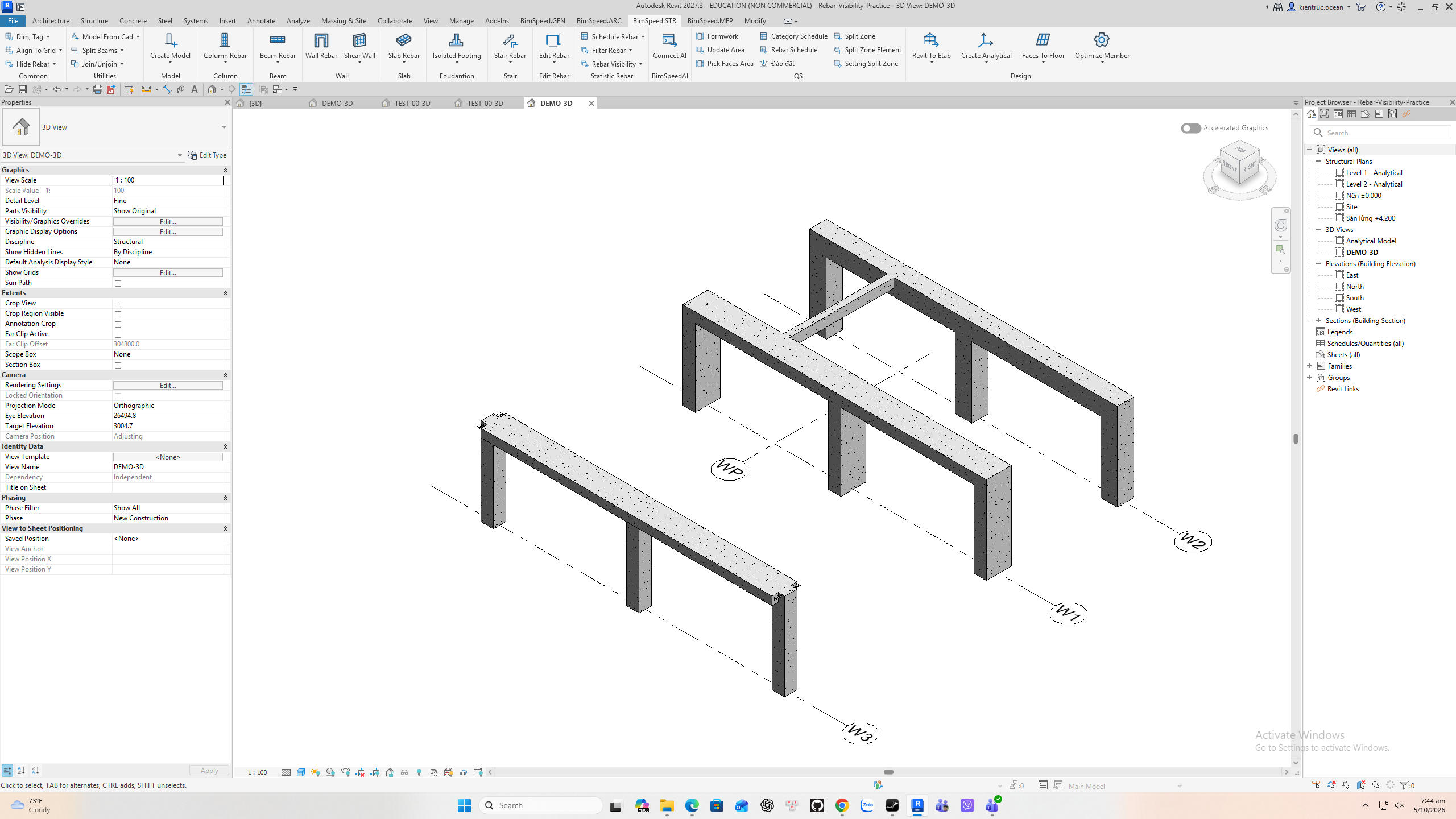
4. Show only selected rebar sets (1:01)
For a local change, select the rebar sets themselves before opening the command. Selecting a beam is not the same as selecting its hosted bars. Here the selected longitudinal set contains six bars. Leave Set Unobscured checked, click OK, then Close. Check the checkbox each time: this installed dialog opens with it checked.
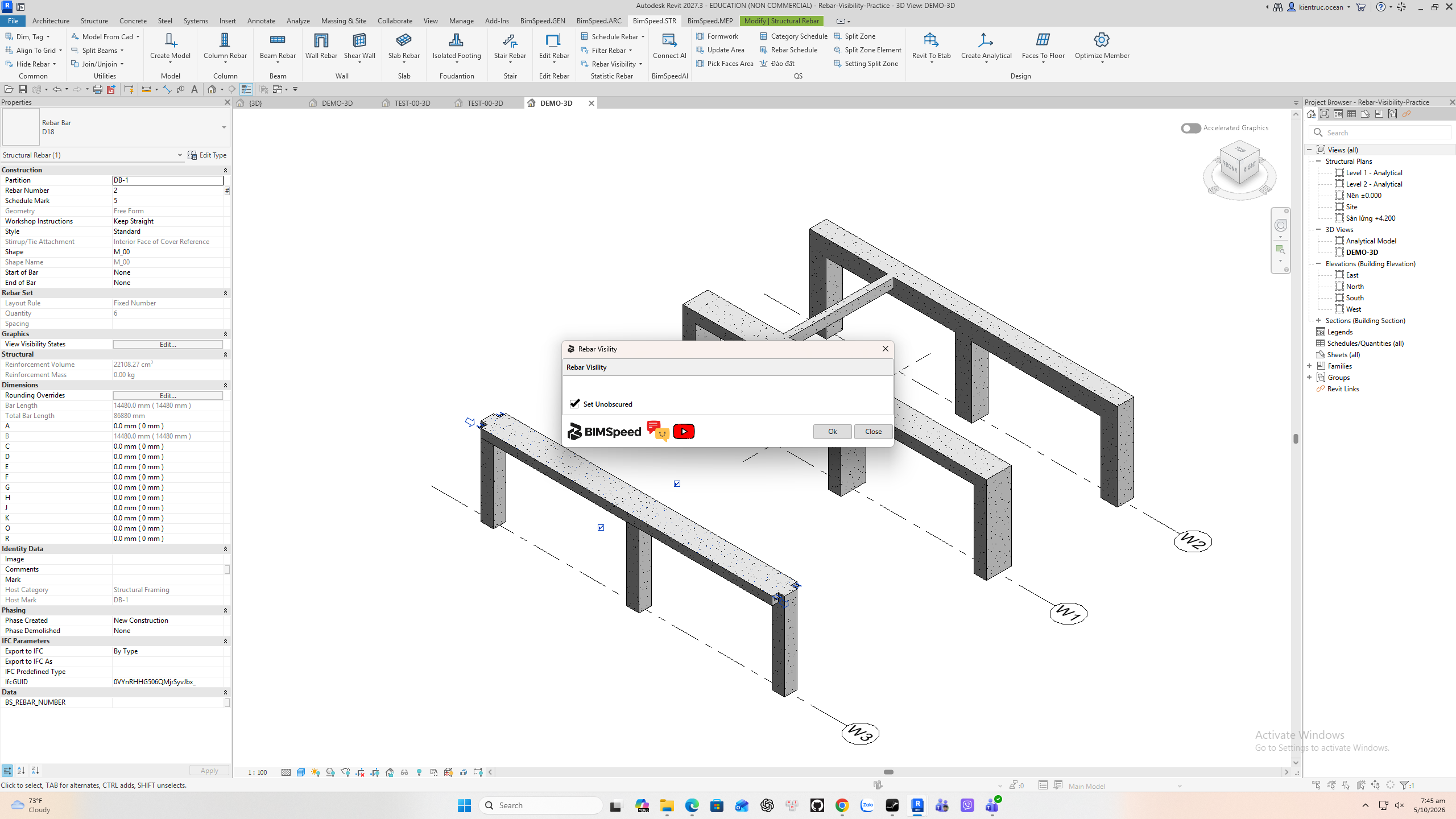
5. Verify selection and view scope (1:23)
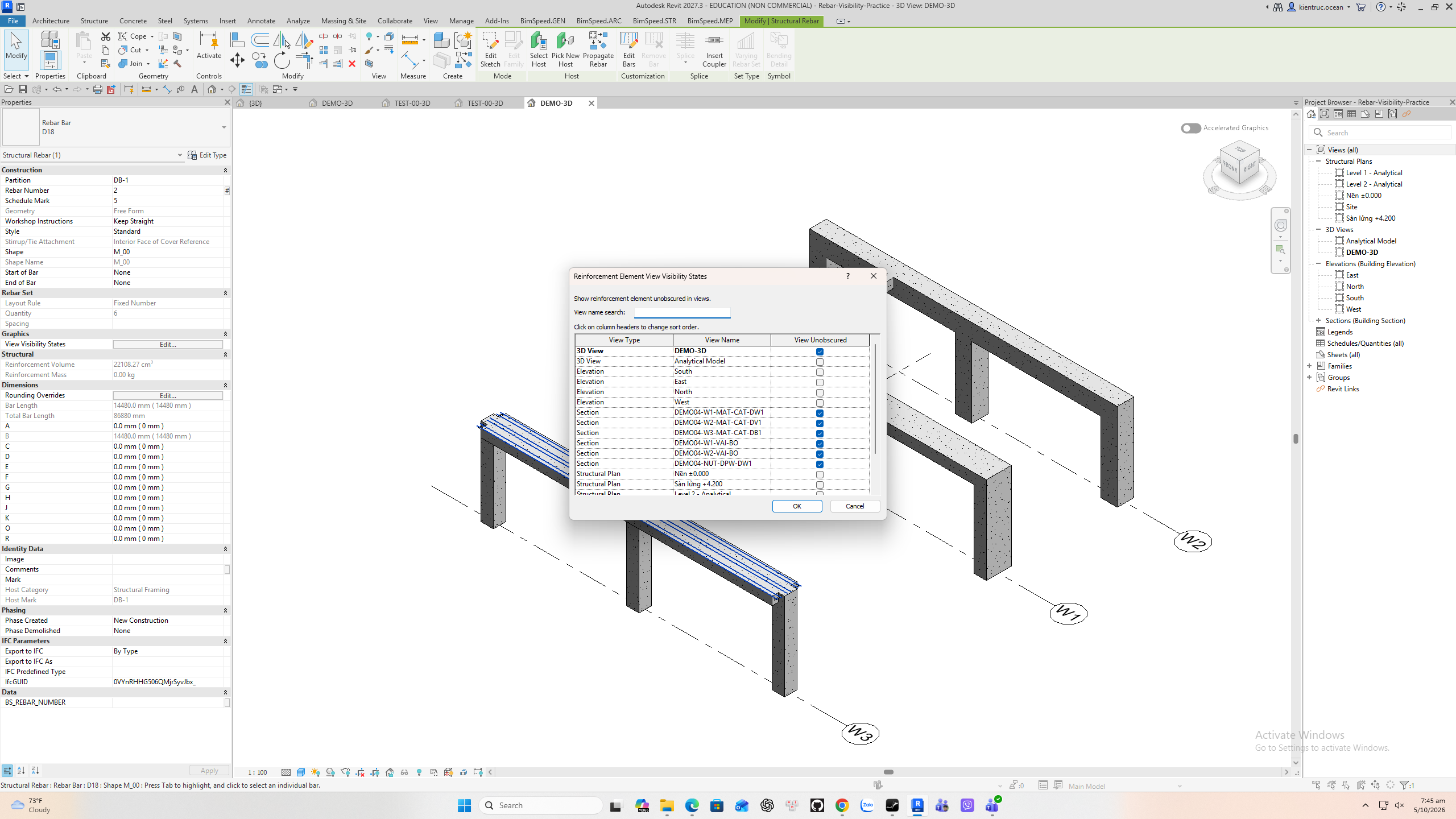
Only the selected longitudinal bars become visible through the front beam. The remaining reinforcement keeps its obscured state. To audit a set, select it and open View Visibility States in the Properties palette. The next screen shows the state for the active three dimensional view.
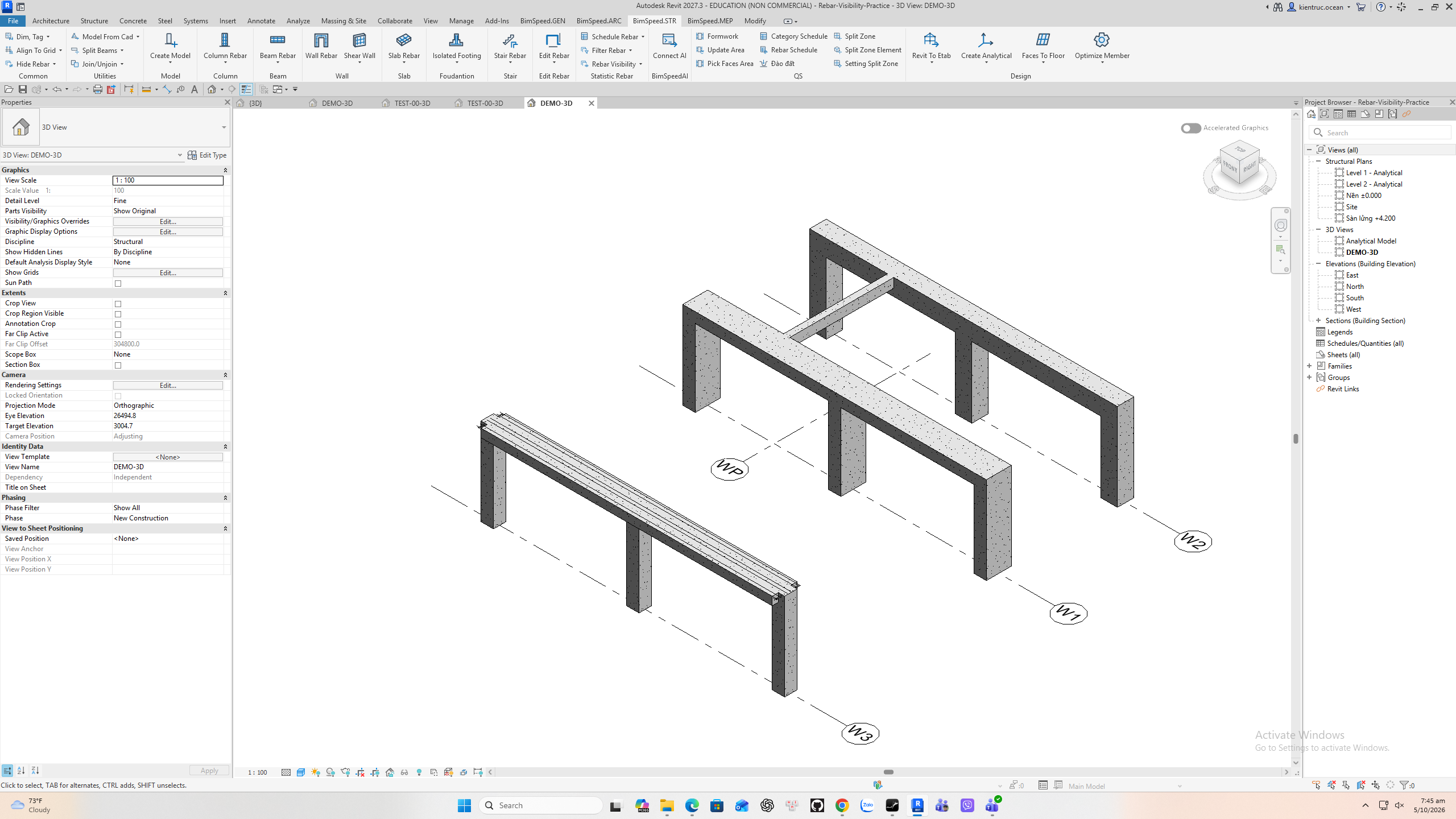
6. Check View Visibility States (1:40)
In the native View Visibility States dialog, inspect the row for the active view. The Unobscured setting is view specific. Other views can have their own existing settings. In Revit twenty twenty seven, BIMSpeed exposes only Set Unobscured here. Do not look for the older Solid checkbox in this installed version.
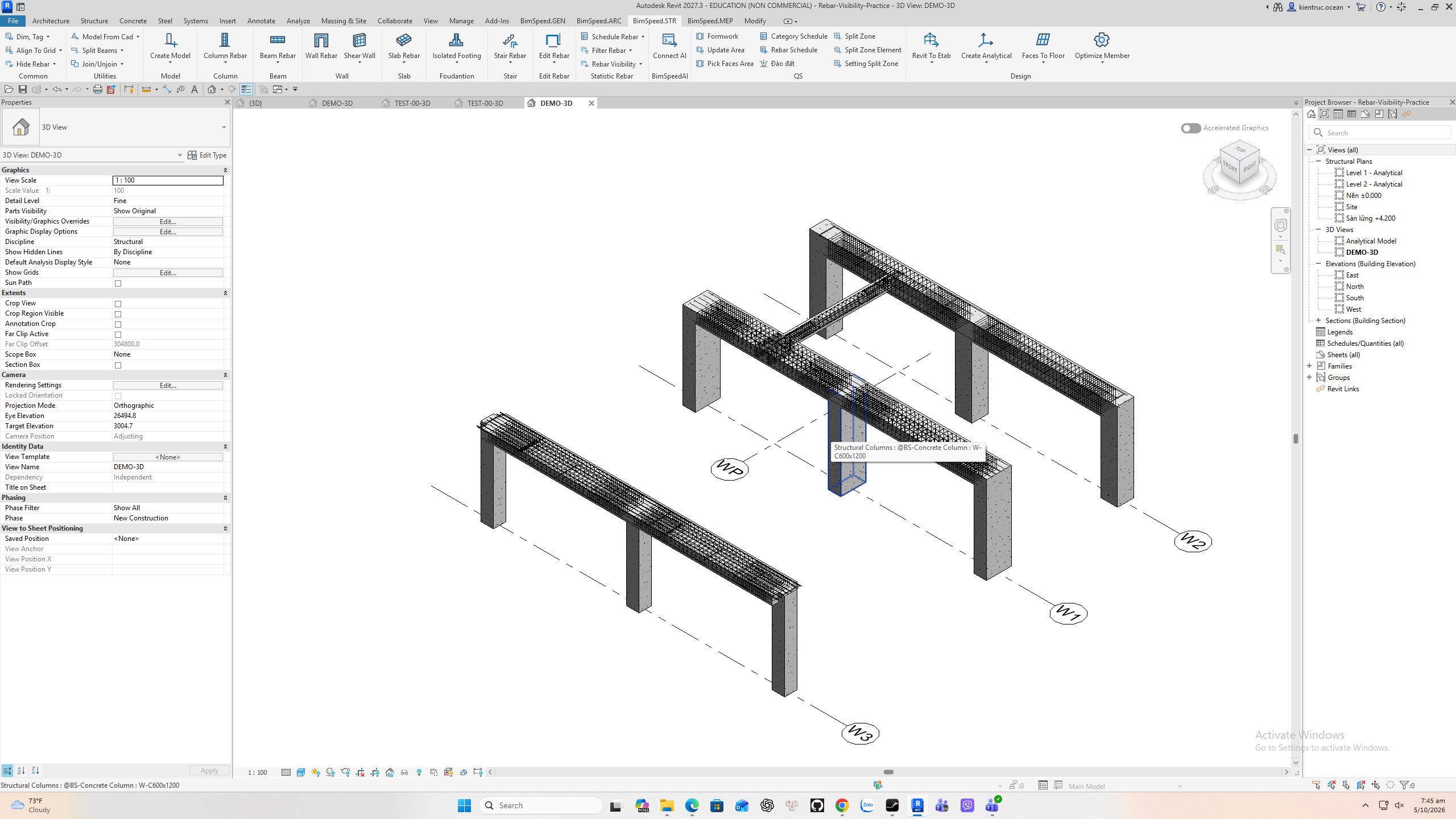
7. Show all reinforcement and save (2:00)
Clear the selection, reopen Rebar Visibility, leave Set Unobscured checked, and apply. All applicable reinforcement can now show through its host in this view. If bars are still missing, check the category, view template, crop or section box, and detail level. Save the R V T to preserve the view state. The practice file includes this final visible result.
Practice and safe repetition
Verified all-rebar and selected-set visibility in the active view. Revit 2027 exposes Set Unobscured; Solid is unavailable. Saved model contains the final visible state.
Download the Revit 2027 practice package, extract the RVT and read README.txt. Save a separate copy before repeating. Use Ctrl+S to save the RVT; saving a tool template alone does not save model changes.