Category Schedule and QS Rebar Schedule
The steps and conditions below follow the current implementation. Runtime evidence is identified separately; availability of every command on the installed ribbon has not been verified.
Open BimSpeed.STR → QS. These entries use custom tables and Excel; a table window does not establish a native Revit ViewSchedule. Keep model and workbook output separate for comparison.
Category Schedule
Choose a saved configuration or configure a new one. Filters selects Selection Type, Architecture / Structure / MEP / Other groups and categories. Each rule has Parameter, Operator and Value; add/remove changes rules. Verify instance/type sources using one passing and one excluded element.
Parameter has search and available/selected lists. Add/Remove controls columns; Up/Down orders them. Sorting/Grouping supports up to six parameter levels with Ascending/Descending. Itemize every instance controls itemized versus grouped rows; grouped row count is not an element count. Format selects a column, Header and Hidden Field; hiding a column does not delete model data.
Apply opens the result table. Edit Settings returns to setup. Group, group-parameter selectors and Total Parameter control aggregation; sum only suitable numerical values with consistent units. Export To Excel writes the table without editing the model. Save/Delete Configuration manages presets; Close exits. New workbook evidence for rules, grouping and totals remains pending.
Rebar Schedule
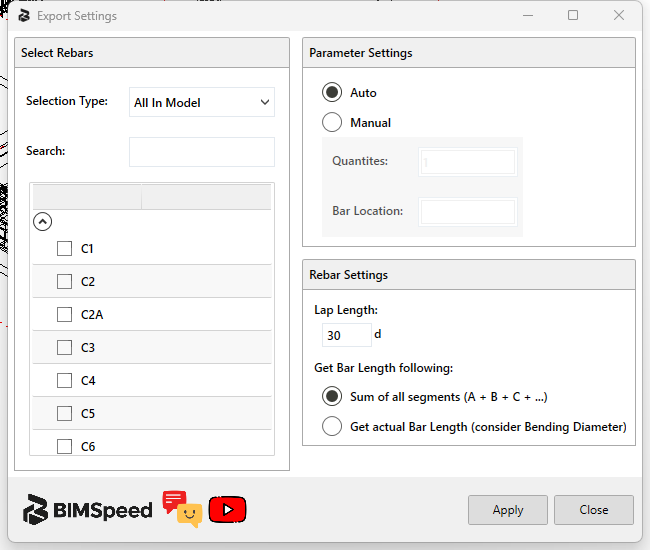
This is the QS CmdRebarSchedule entry, separate from numbering and other reinforcement schedule tools. Choose Selection Type, search/select Partitions, select Levels, then Apply. These filters scope the table without changing reinforcement.
| Control | Decision and verification |
|---|---|
| Auto / Manual, Quantity | Source of member multiplicity; a manual factor is not necessarily the bars in a set. |
| Bar Location / Lap Length | Table location/lap data. Confirm header units; editing table input does not establish model splices. |
| Sum of all segments | Length from A+B+C… shape dimensions. |
| Actual Bar Length | Revit length accounting for bending geometry; it can differ from a segment sum. |
| Apply | Open/update the scoped table. |
| Edit Settings / Export To Excel | Return to setup or export current table data. |
Columns include member quantity, bar number, shape, d (mm), quantity, lap, length mm/m and diameter groups. Cross-check a real Rebar set's Bar Type, Quantity, Bar Length, Shape and Partition. Totals depend on the selected length method. A different schedule command's screenshots do not verify this identity. New workbook and Properties evidence remains pending.
Other QS modules
Package/source registration also references Estimate Brick, Shop Brick, About (VinCons) and Create Direct Shape By Region. These have not been observed on the running ribbon; DLL and registration presence do not prove installation/licensing availability. They remain audit candidates rather than executed modules. See separate workflows for earthworks, area/zones and Formwork.
From scope to a Category Schedule table
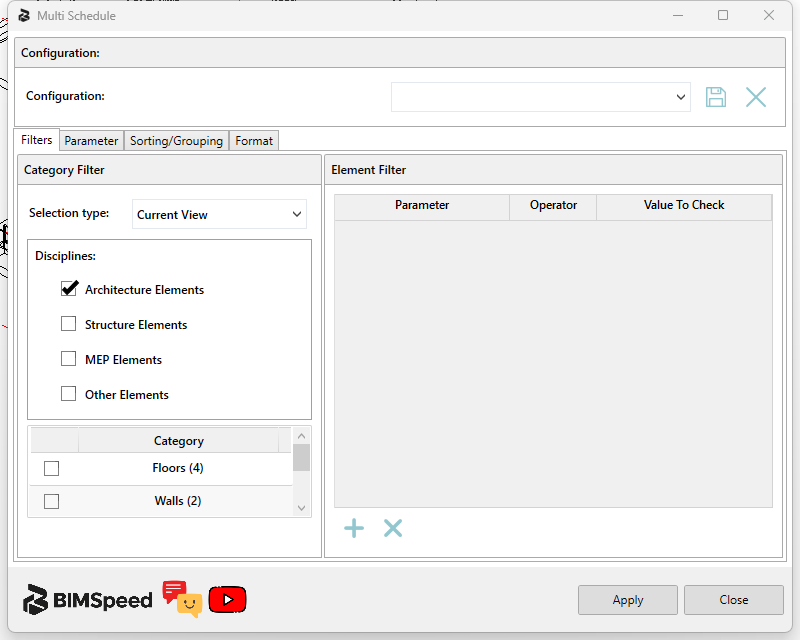
- In Filters, choose ① Selection type first. Current View differs from whole-project or selected-element scope. Under ②, enable discipline groups and then individual categories. Parenthesised counts are source instances in that scope, not grouped output row counts. No category is checked in this initial example, so available parameters remain empty.
- Use ③ + to add a rule and choose Parameter/Operator/Value To Check; × removes a rule. Check one matching and one nonmatching element. Text must match source data; compare numeric values with the parameter's project unit.
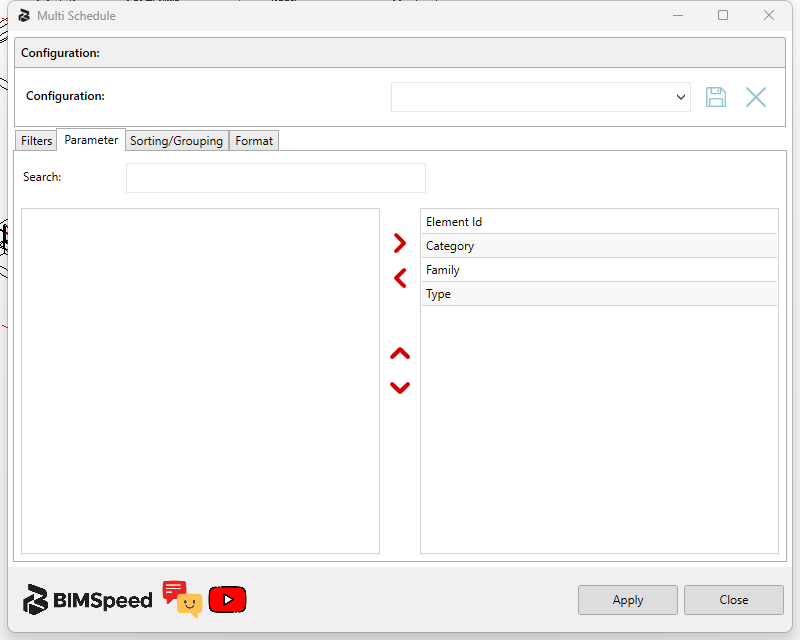
- In Parameter, ① Search filters the left list. Select a field and use ② > to include it, < to remove it, and Up/Down to reorder it. ③ lists output columns; Element Id lets you trace a row to its model host. Removing a column does not delete a Revit parameter/value.
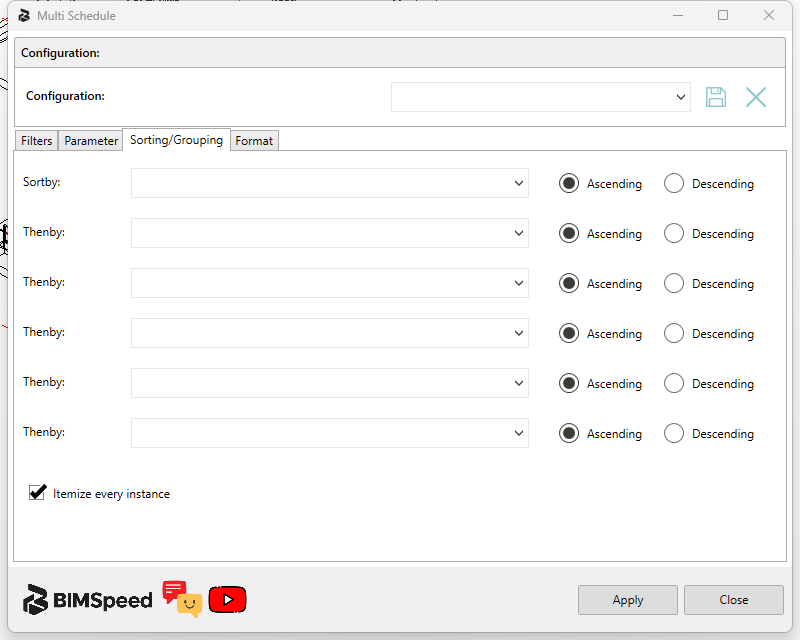
- In Sorting/Grouping, ① Sortby and five Thenby levels run in priority order, each with its own Ascending/Descending choice. Unused levels can remain empty. Enable ② Itemize every instance to audit hosts individually; disable it to group by the chosen keys. Grouped row count is not element count.
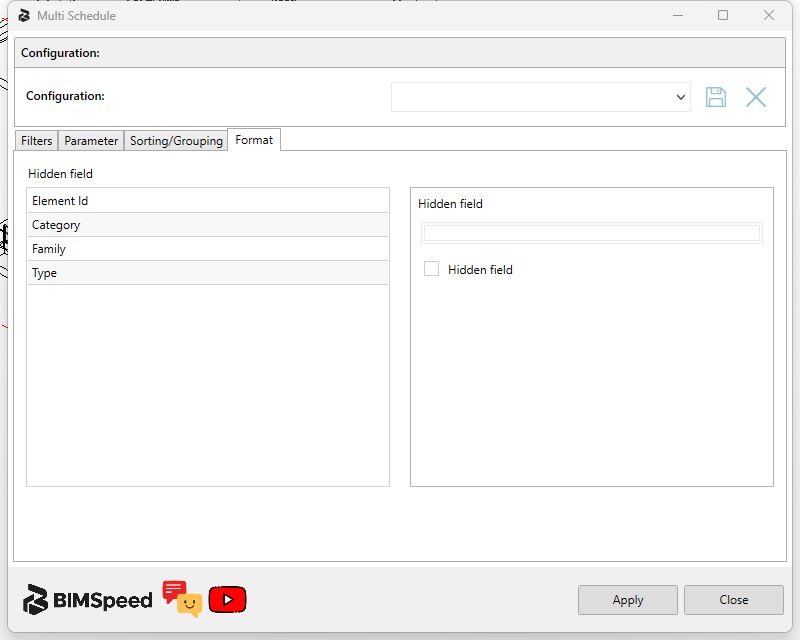
- Under Format, select ① a field, edit ② its text box to change the header, and use the Hidden field checkbox to hide its output column. This build labels both the text field and checkbox “Hidden field”; distinguish their control types. Header editing does not rename a Revit parameter.
- Apply builds the tool's table. Check IDs, category/type and representative values before totalling. Configuration and its disk button save a filter/column/sort/format preset; the adjacent × deletes that preset, unlike the filter-row ×. Close exits. A tool table does not automatically become a Project Browser ViewSchedule; use Export To Excel to retain exported data.
Rebar QS: the real Export Settings choices
① Selection Type and Search define/filter sources; ② checkboxes select Partitions, grouped by Level when level data exists. With no partition selected, All In Model is not ready for Apply. ③ Auto reads existing host-count/location parameters; Manual enables Quantities (a positive host multiplier) and Bar Location. This input does not change physical Rebar set Quantity. Manual Apply may write BS_BAR_LOCATION, so preserve the input.
④ Lap Length=30d is a diameter multiplier, not30mm. Added lap length also depends on the calculated splice count; it does not add30d to every bar. Sum of all segments (A+B+C+…) uses BIMSpeed segment length or its fallback when data is missing; Get actual Bar Length (consider Bending Diameter) uses Revit Bar Length. Compare one native set and retain missing Bar Segment Length warnings. This choice does not modify bar bends. ⑤ Apply opens the table; Close exits settings, with Excel export as a separate step after checking the table.