Update Area and zone splitting
The steps and conditions below follow the current implementation. Runtime evidence is identified separately; availability of every command on the installed ribbon has not been verified.
Open BimSpeed.STR → QS. Keep input and result models separate, then inspect categories, volume, host identity and copied zone parameters.
Update Area
The tool reads Speciality Equipment DirectShapes visible in the active view. It matches HOST_GUID to the host UniqueId, sums AREA into FW_AREA, sums _SIDE items into FW_SIDE, and writes BS_FW_TYPE_… parameters by type. Missing shapes supply no quantities; shapes outside the active view may not be included.
| Control | Use |
|---|---|
| Select Elements | Run, pick hosts and Finish. Category switches do not replace this selection. |
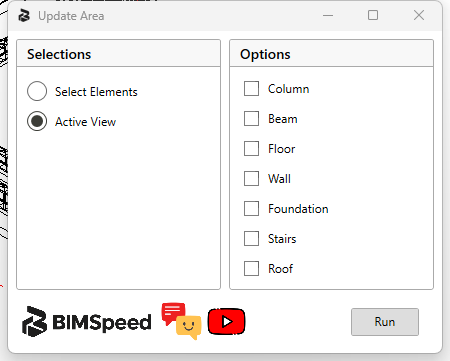
| Active View | Collect enabled host categories in the active view. |
| Column, Beam, Floor, Wall, Foundation, Stairs, Roof | Category filters for active-view collection. Check host parameters and shape data. |
| Run | Close the window, create required type-area parameters and aggregate data. It does not recreate missing formwork geometry. |
| Close | Save scope preferences, without establishing an updated result. |
Test one host with two matching shapes: FW_AREA should equal their AREA sum in consistent units. Distinguish Area doubles from Text/Number parameters and avoid duplicate shapes. New complete entry and BS_FW_TYPE mapping evidence remains pending.
Split Zone
Use Pick Zone and check boundary/elevation. Main Extension contains links, target categories, parameters from the zone and parameters from source elements. Header checkboxes select/deselect each list. Make All Generic Model changes the output category, affecting schedules, filters and tags. Run is enabled only with a valid zone selection. Result lists ID, Category and Report; Show locates output.
Do not assume split results retain family hosting, reinforcement, joins or type parameters. Compare total volume, overlapping zones and per-piece data. The modeless window writes through ExternalEvent; wait for completion before saving.
Split Zone Element
Choose Project / Project Link, selecting the instance for link mode. Pick Generic selects a Generic Model region. Select parameters and Copy Level where needed, then Run. Settings opens parameter-value mappings. Inspect Result and use Show. This entry and Split Zone use separate data models and need separate evidence.
Setting Split Zone
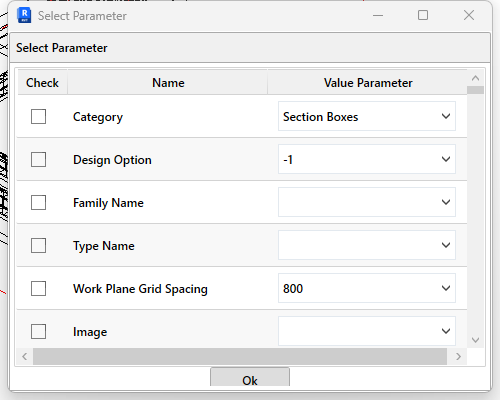
Rows contain Check, Name and Value Parameter. Check enables the mapping and Value Parameter chooses its source. Ok accepts settings for the session. The viewmodel uses session singleton data; a persistent JSON-save action has not been established here. Do not describe Ok as a durable preset without testing a Revit restart. New committed zone/link results remain pending.
Scope is separate from geometry creation
The English Update Area window has ① Select Elements for picking hosts after Run; Active View uses the categories enabled in ② in the current view. None is enabled in the image, so this is not a configured update run. Enable a category containing both hosts and associated shapes, then ③ Run. Compare host FW_AREA with the sum of shape AREA values sharing its HOST_GUID. An existing FW_AREA value does not prove new geometry was created. Compare against the input/Undo state and save separately after checking quantities.
Read Setting Split Zone in context
① Check enables each mapping; Name identifies a parameter found on the current source object. ② Value Parameter chooses its value; a blank field does not establish transferable data. Scroll vertically for remaining rows and horizontally for complete names/values, then ③ Ok accepts this session's selection. The screenshot reads a Section Box: Category = Section Boxes and Work Plane Grid Spacing = 800 are not recommended zone parameters. Select the intended Generic Model zone and suitable instance data first. After splitting, select actual output pieces and inspect zone/level; this settings table is not evidence of split geometry.