Numbering — Category and Sequence
English Revit 2027.3 demonstration. Verification: Structural column Comments T-0028 output verified.
Video
Narration: Google Gemini Charon, professional English. The video retains the full Revit screen, briefly zooms on named controls, and includes timed English subtitles. Transcript · SRT.
1. Choose category and range
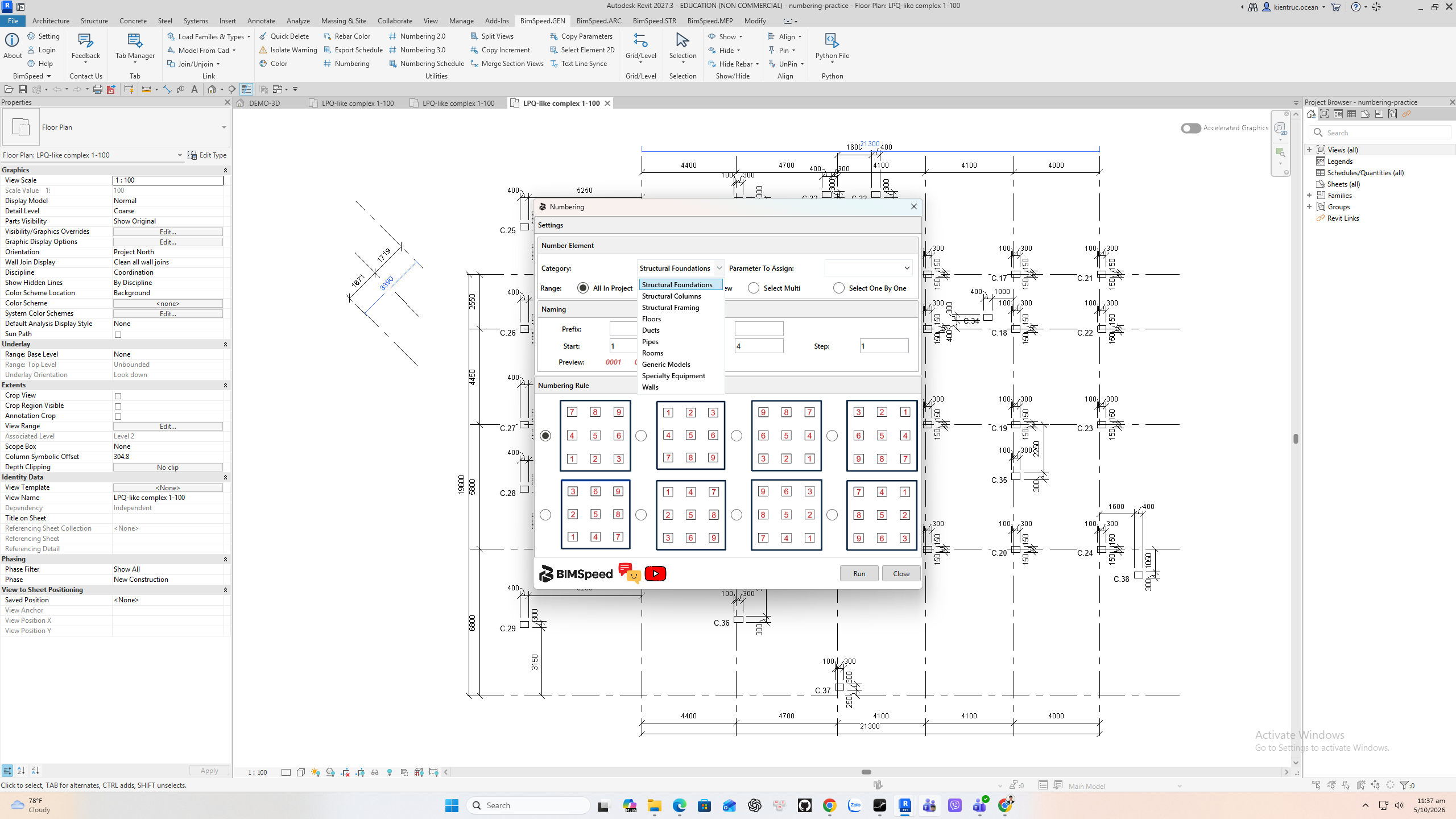
Open classic Numbering on BimSpeed dot G E N. Pick a category such as Structural Columns. Range offers All In Project, All In Active View, Select Multi and Select One By One. This example uses All In Active View; choose a narrower selection when only one zone should be numbered.
2. Pick the destination parameter
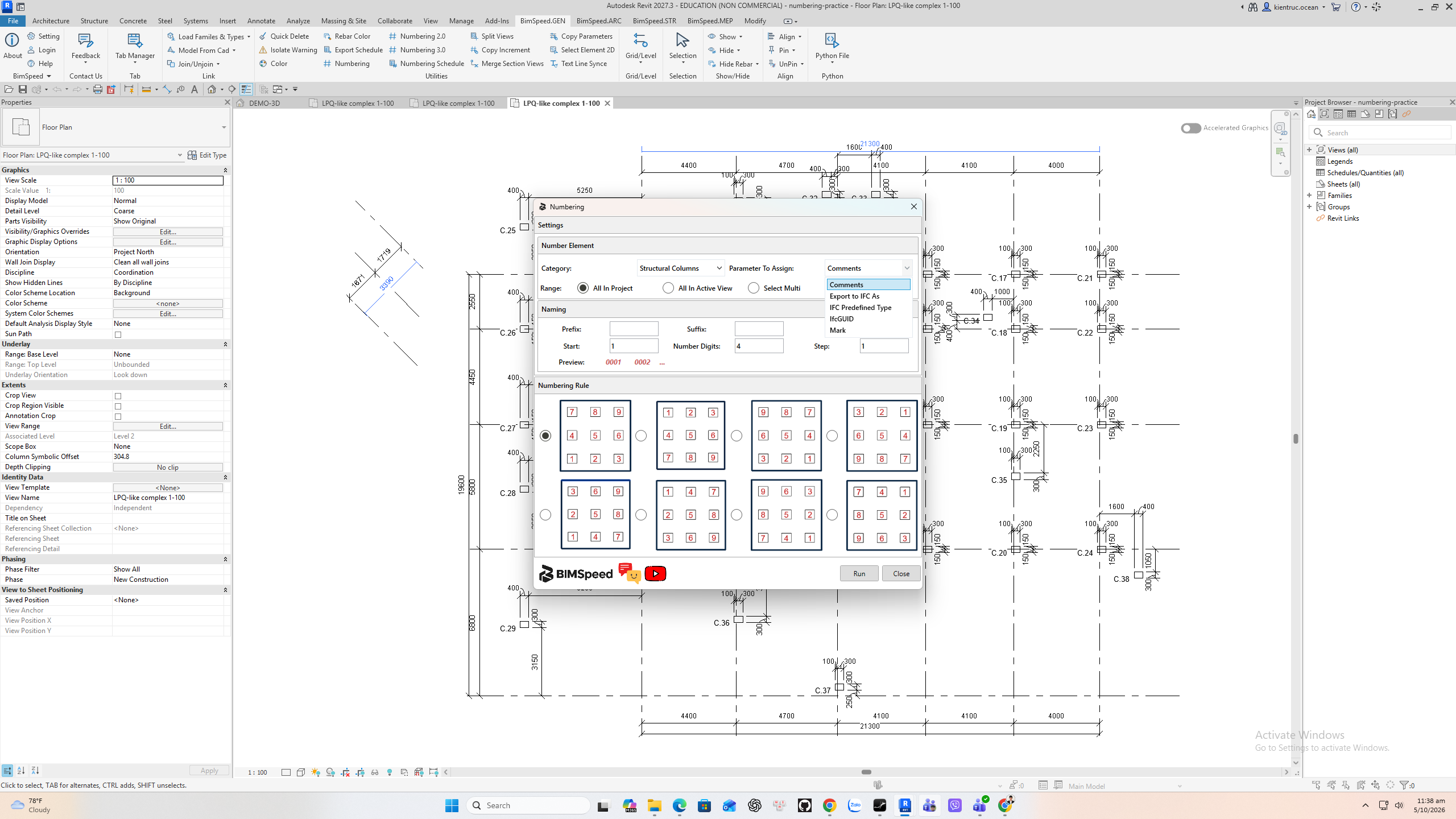
Select a writable parameter. Here Comments receives the result, leaving the native Mark untouched. The category list also includes Foundations, Framing, Floors, MEP, Rooms, Generic Models, Specialty Equipment and Walls. The parameter must exist on the chosen category.
3. Set prefix and number format
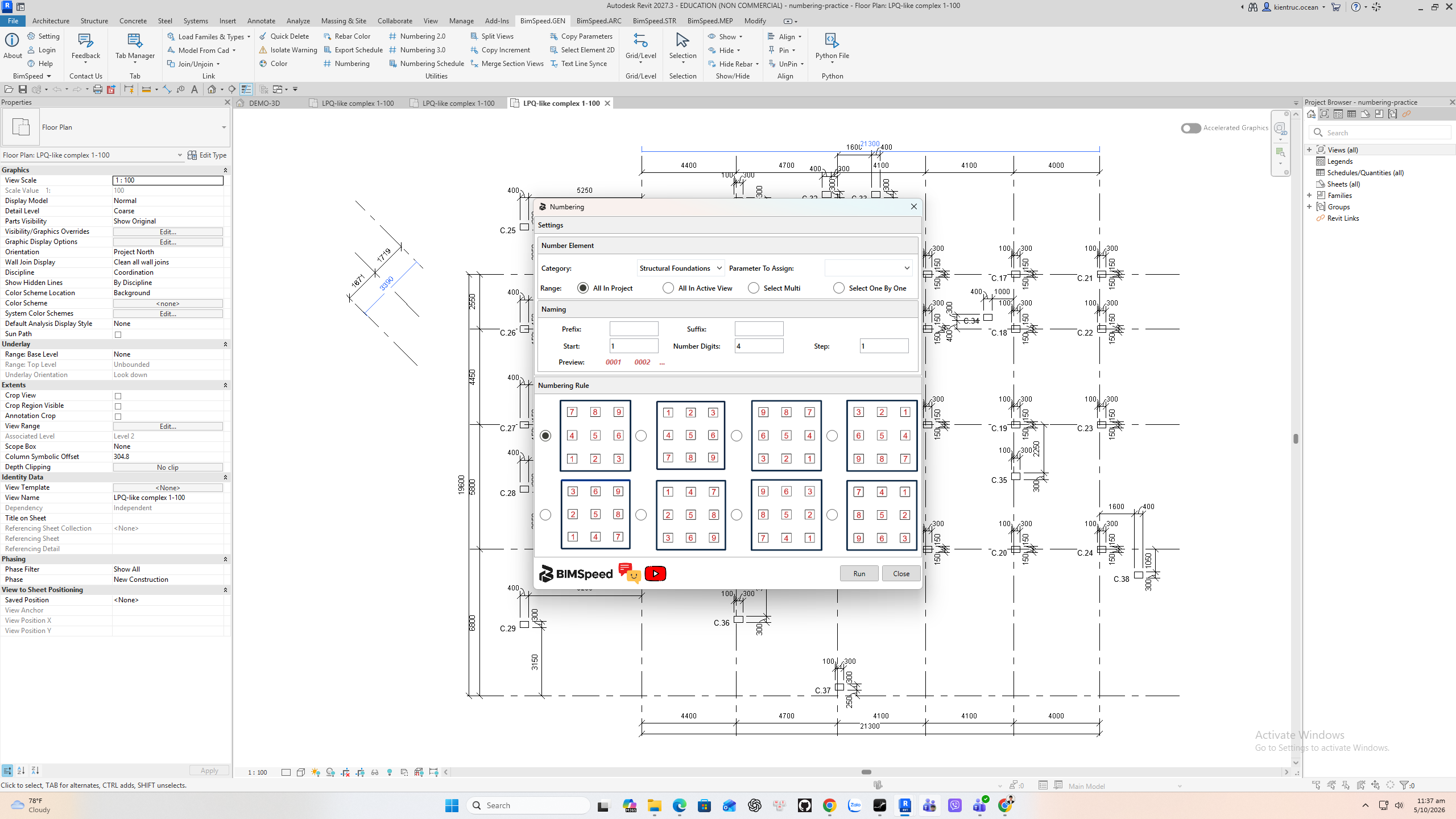
The example uses prefix T dash, start one, four digits, and step one. The dialog has eight visual ordering rules; choose the direction that matches the drawing before Run. Suffix is optional. Recheck the range and parameter after switching categories.
4. Run and audit a column
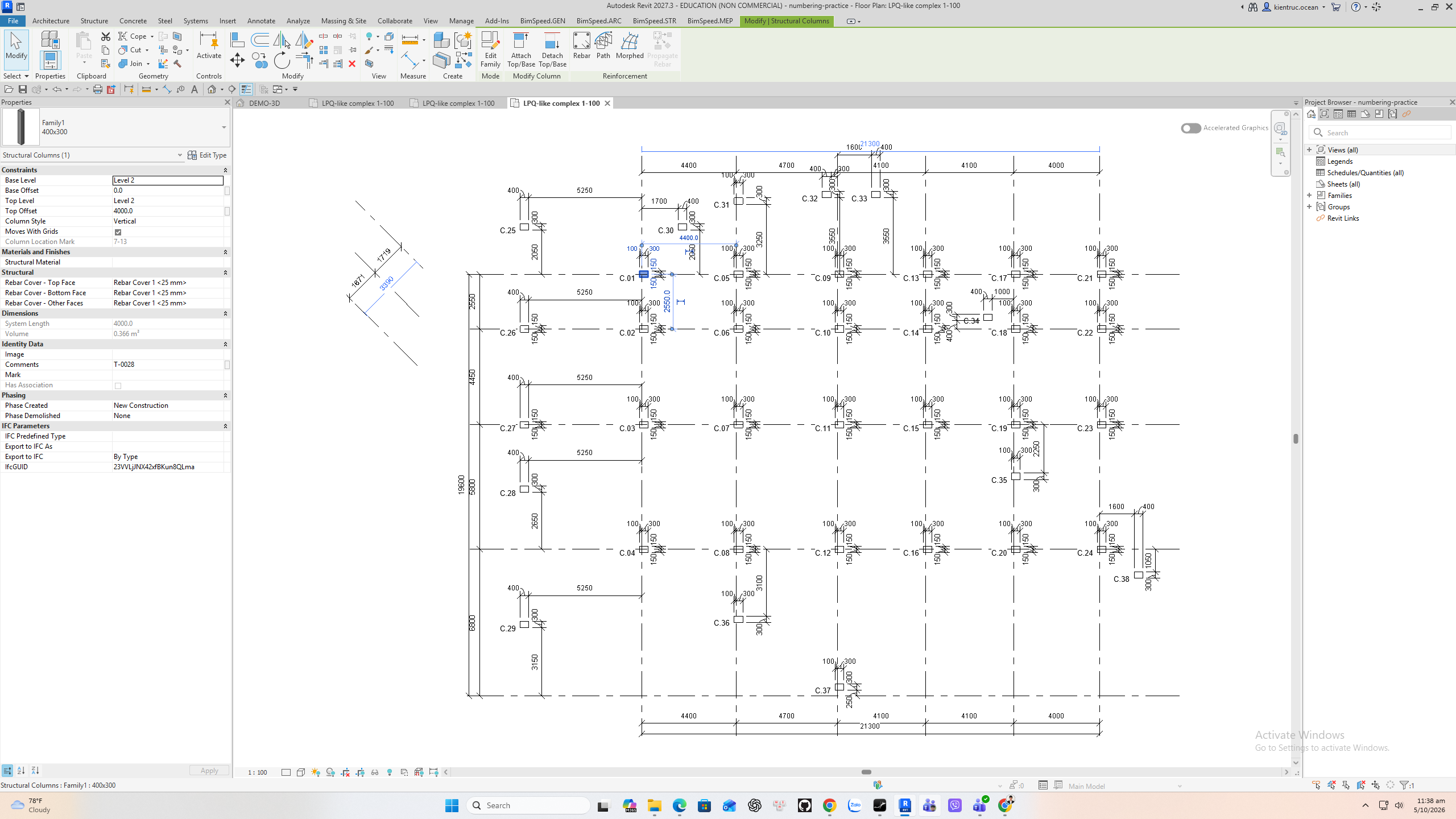
A selected column shows Comments T dash zero zero two eight in Revit Properties after the run. Audit the first and last element in the chosen range, since ordering depends on the selected visual rule and model positions. Save the model when the sequence is correct.