Coordinates — align analytical nodes
BimSpeed.STR → Design → Coordinates operates on Analytical Nodes (ReferencePoint) and their analytical members. It aligns analytical node coordinates; it does not set project Shared Coordinates.
Choose reference nodes and nodes to move
- Open a view showing analytical nodes and save an RVT copy. Choose Direction X, Y or Z.
- Press Get, select reference nodes and Finish. Origin lists reference-node coordinates along the selected direction.
- Check Tolerance and edit New X/Y/Z if the target differs from the original reference coordinate.
- Press Import, select nodes to align and Finish. Inspect Data, distances and recognized rows before pressing Ok.
- Inspect node positions and member endpoints in Revit. Undo an incorrect scope; save RVT after checking the result.
| Control | Units, scope and effect |
|---|---|
| Direction X/Y/Z | Selects one direction and enables its control group. It does not rotate the model. |
| Tolerance | Metres; source default 0.5 m. Each reference accepts coordinates within Original ± Tolerance. Reduce it to avoid attracting unrelated nearby nodes. |
| X2 / /2 | Intended to double/halve the direction's tolerance. Read the version caveat below. |
| Original, min, max | Read-only original coordinate and acceptance interval. |
| New X/Y/Z | Editable target coordinate in metres. Do not enter millimetres in this field. |
| Distance | Difference between target and original reference coordinate. |
| Delete | Removes selected Origin rows, not Revit elements. |
| Data: Original / Distance to origin | Imported node coordinate and distance to the reference. Row colour indicates recognition state; inspect numbers as well. |
| View | Locates the related element for inspection. |
| Get / Import / Ok | Ordered workflow: reference nodes → target nodes → apply. Import/Ok may remain disabled until suitable data exists. |
| Close | Closes the window; differs from applying changes with Ok. |
Illustrative change: reducing tolerance from 0.5 to 0.25 m narrows the interval. Nodes 0.1 and 0.4 m from a reference would no longer both qualify. This is an explanatory example, not a measured practice-model result.
The reviewed source assigns the Y X2 command again to change Z and leaves Z X2 unassigned. Enter tolerance directly and verify the value in the intended direction until your installed version has been checked.
No saved and reopened alignment result is available yet. An empty settings window does not establish that analytical nodes moved.
Read the tables before applying
Work on one axis at a time. After switching Direction X → Y → Z, recheck that axis's Tolerance, Origin table and New column. Preparing X does not prepare Y or Z. Exclude nodes that must remain untouched from Import. Selecting Origin rows and pressing Delete removes table references, not Revit nodes.
Start with one origin and two nodes. Record their Revit coordinates, Get the origin, enter tolerance in metres and Import the nodes. Compare Original, min/max and Distance to origin. Review or exclude nodes outside the interval instead of widening tolerance simply to change row colours. Edit New X/Y/Z, press Ok and reselect the nodes and connected members. Compare coordinates and endpoints; a view along one axis can hide displacement along another.
Revise and save
Get and Import prepare data; Ok requests coordinate changes. This window does not save Shared Coordinates or export a coordinate file. If the change is wrong, use Revit Undo, then rebuild the reference and target selections. Save the RVT only after checking endpoints and nodes, reopen a copy and inspect the same IDs. Where the Revit version does not expose suitable ReferencePoints for this selection filter, having Analytical Members alone is insufficient for the node workflow.
The bottom-left logo/Feedback/YouTube icons are explained under Design help buttons.
Choose an axis and read the UI regions
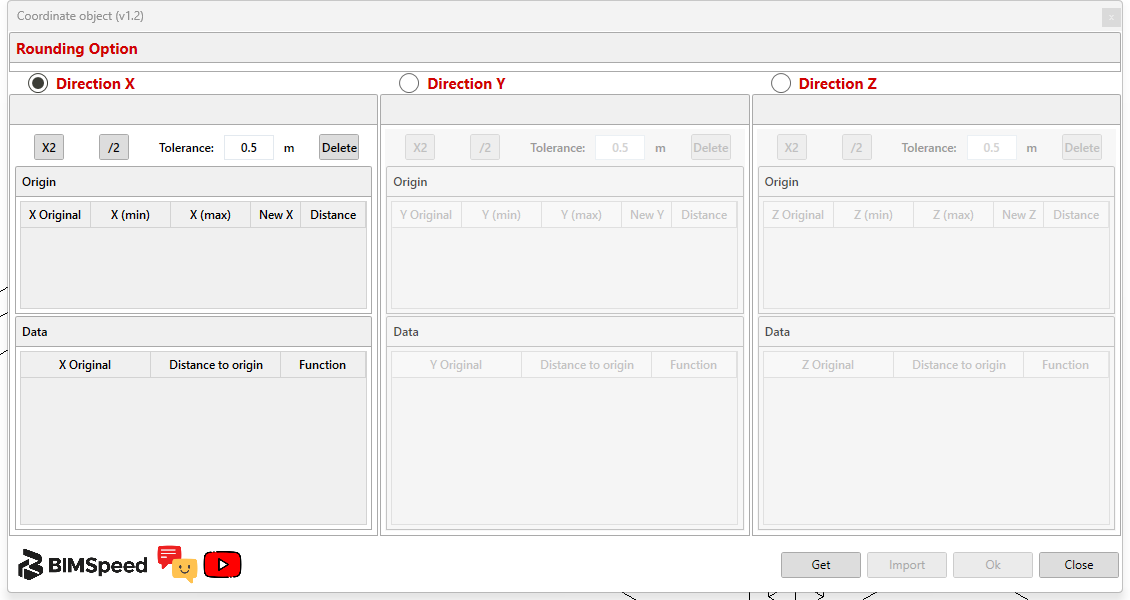
① Choose X/Y/Z; ② tolerance and multiply/divide/delete controls for the enabled axis; ③ origin table; ④ imported-node table and view action; ⑤ Get → Import → Ok, or Close. Import/Ok are disabled before data is prepared. Choosing a direction does not select or move model nodes.
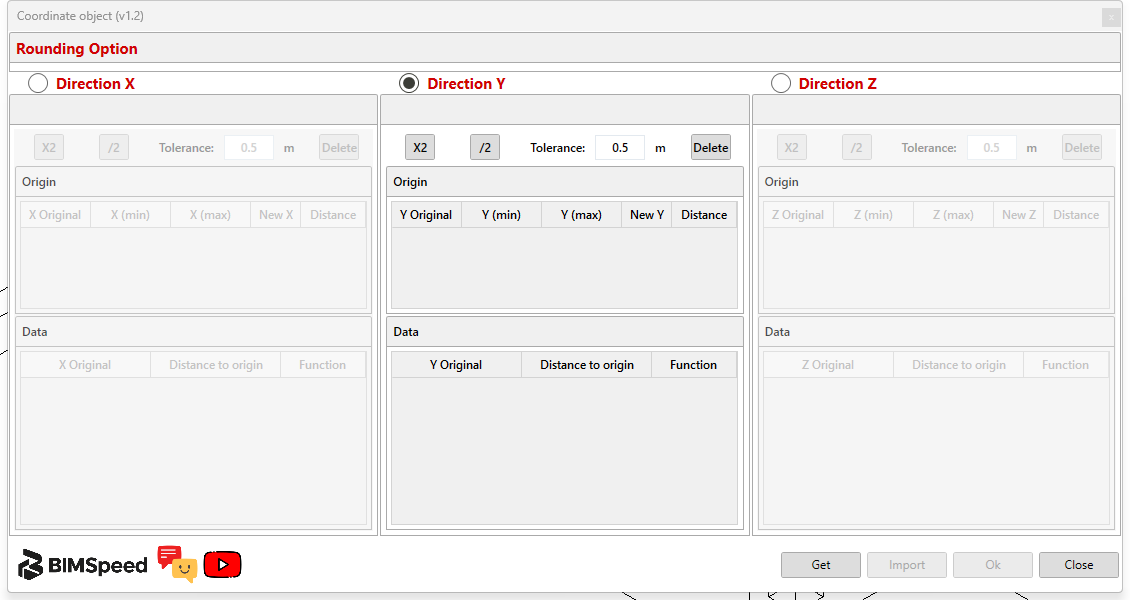
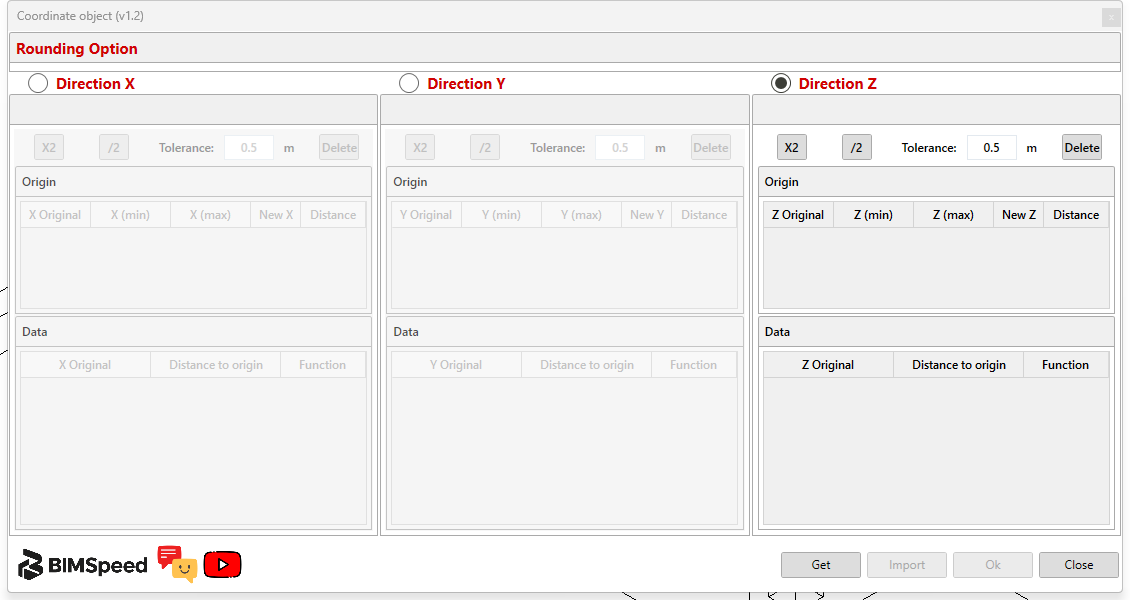
In the Y and Z images, ① is the selected axis, ② its tolerance and ③ its enabled tables. Other groups become grey. All three axes use metres.
Tolerance changes observed in the installed UI
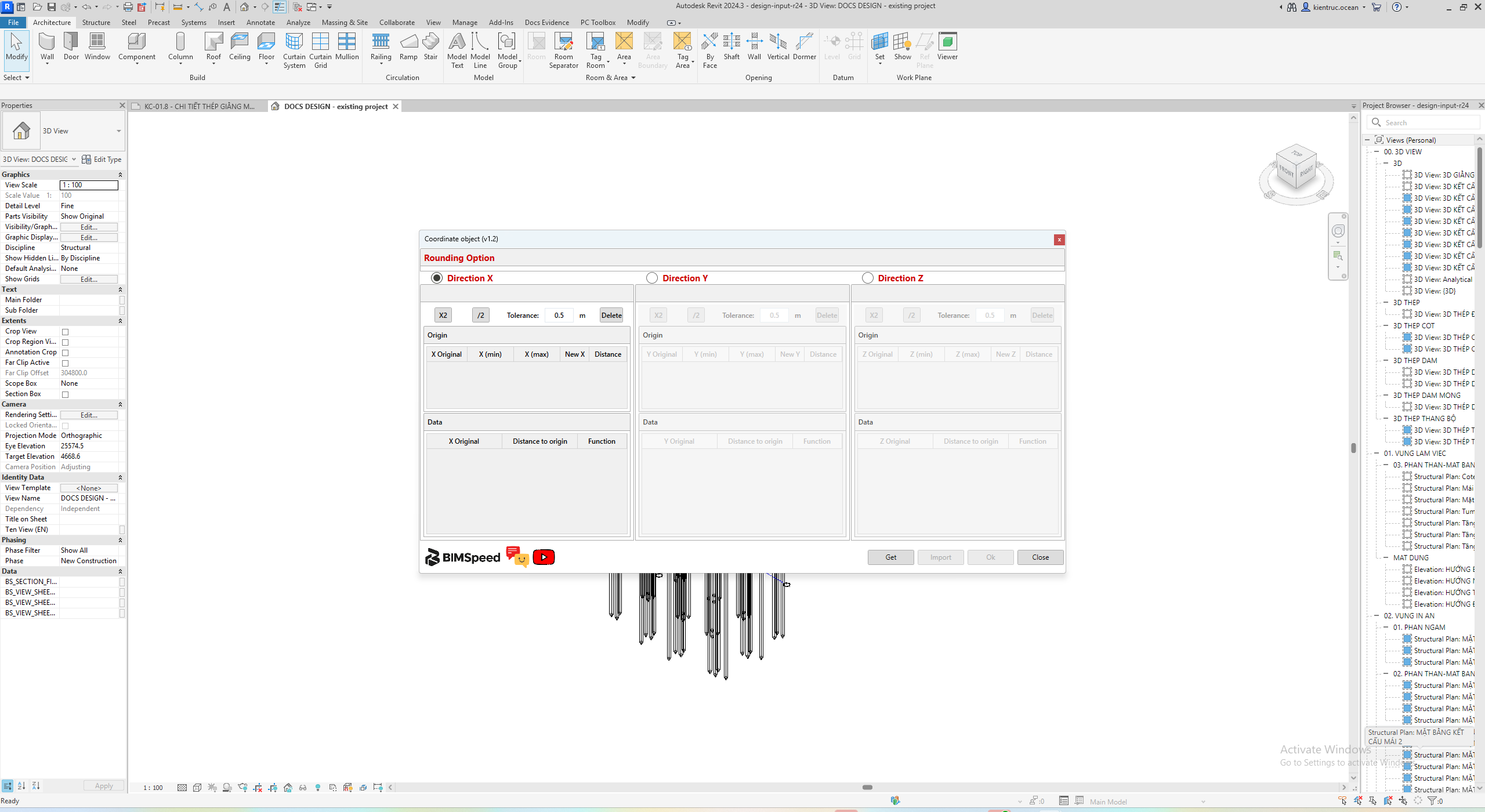
The full window shows ① Coordinates and ② the Revit 2024 host Properties. Origin/Data are empty before Get/Import. The following arithmetic actions change tolerance only; they do not move model nodes.
| Axis / button | Before → after (m) |
|---|---|
| X / X2 | X: 0.5 → 1 |
| X / /2 | X: 1 → 0.5 |
| Y / X2 | Y stays 0.5; Z: 0.5 → 1 |
| Y / /2 | Y: 0.5 → 0.25 |
| Z / X2 | Z stays 1; no bound command |
| Z / /2 | Z: 1 → 0.5 |
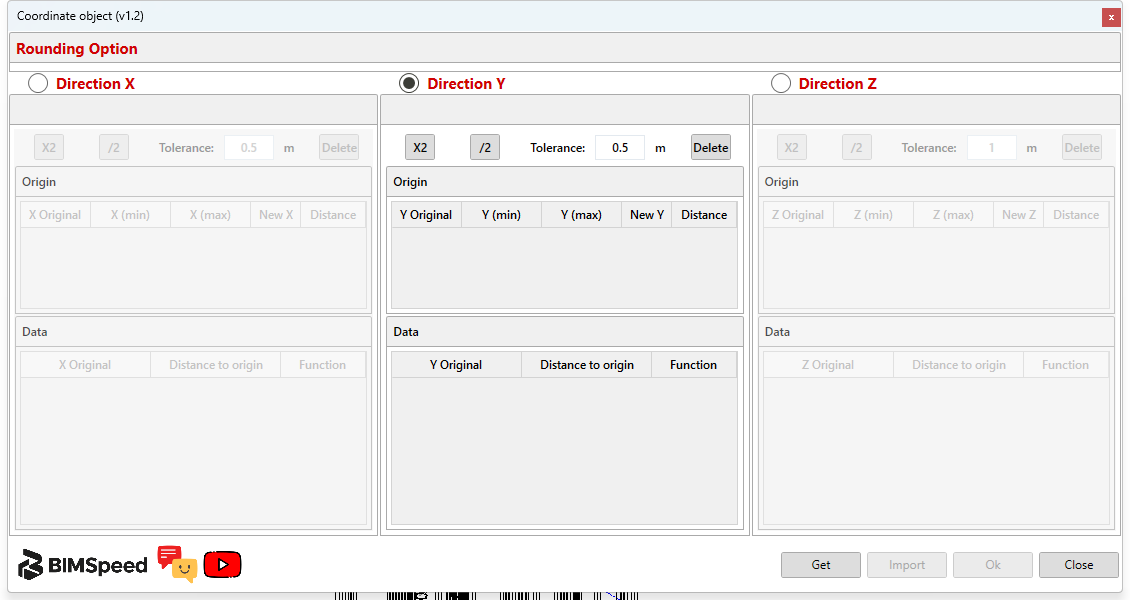
① X2 in the Y group; ② Y remains 0.5 m; ③ Z becomes 1 m. In this version, type tolerance directly and recheck the intended axis before collecting origins or target nodes.