Beam rebar cutting — BeamCut
Select all beams belonging to continuous reinforcement, then open Cut Beam Rebar. The tool reads blanks, matches stock and creates cutting plans; planning is separate from applying rebar splices in the model.
Evidence scope: The earlier English UI reference covers six beams and331 accepted stirrup blanks, with eight excluded entries and an empty test inventory. The separate Revit 2024.3 example below exercises extraction and Optimize on two saved native hosts with nonempty sample stock. Issue and actual-cut confirmation were not exercised.
The four-tab UI reference is from Revit 2027.3; the verified two-host optimization below is from Revit 2024.3. Revit was maximized and dialogs retained their natural size.
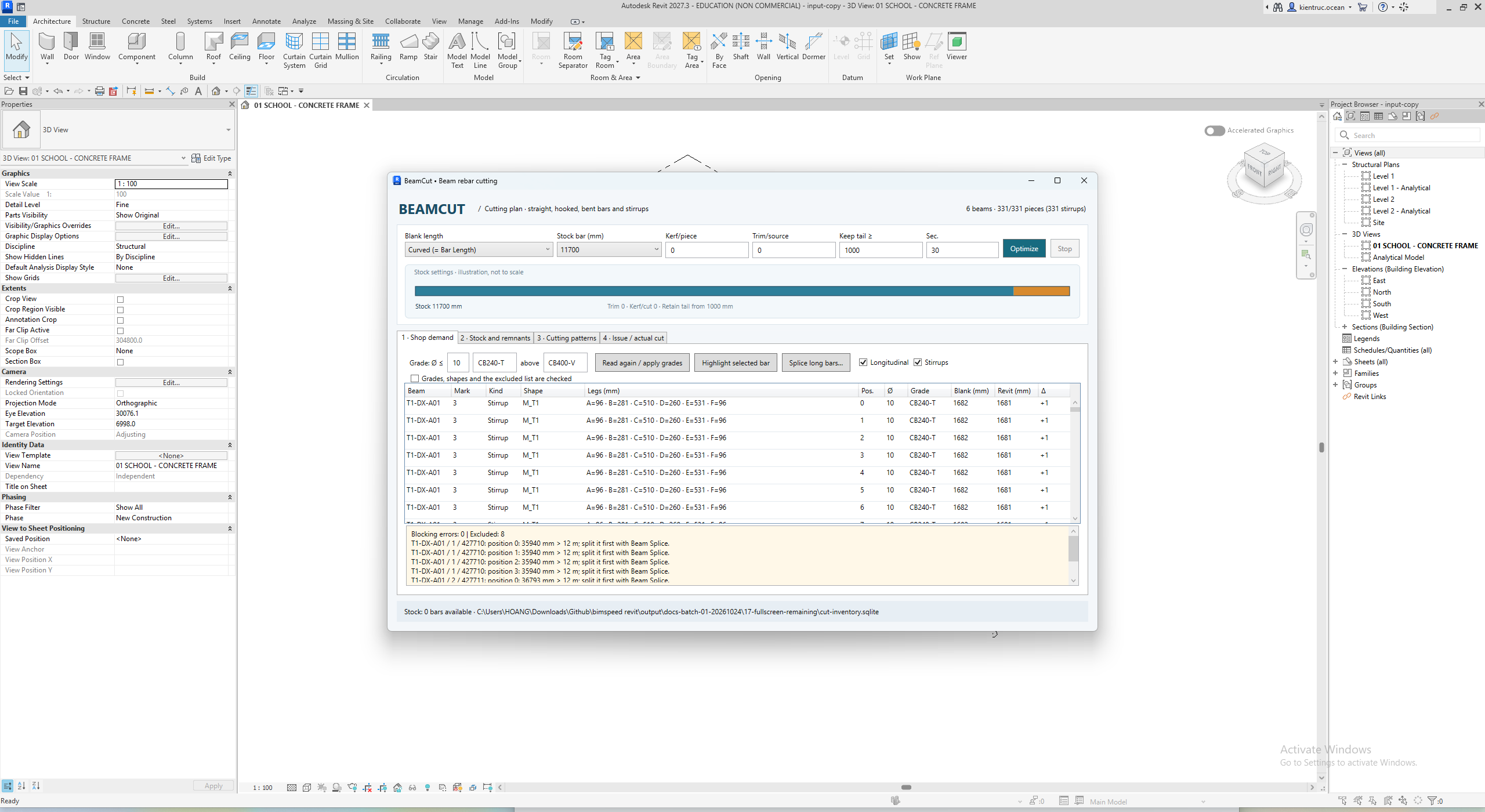
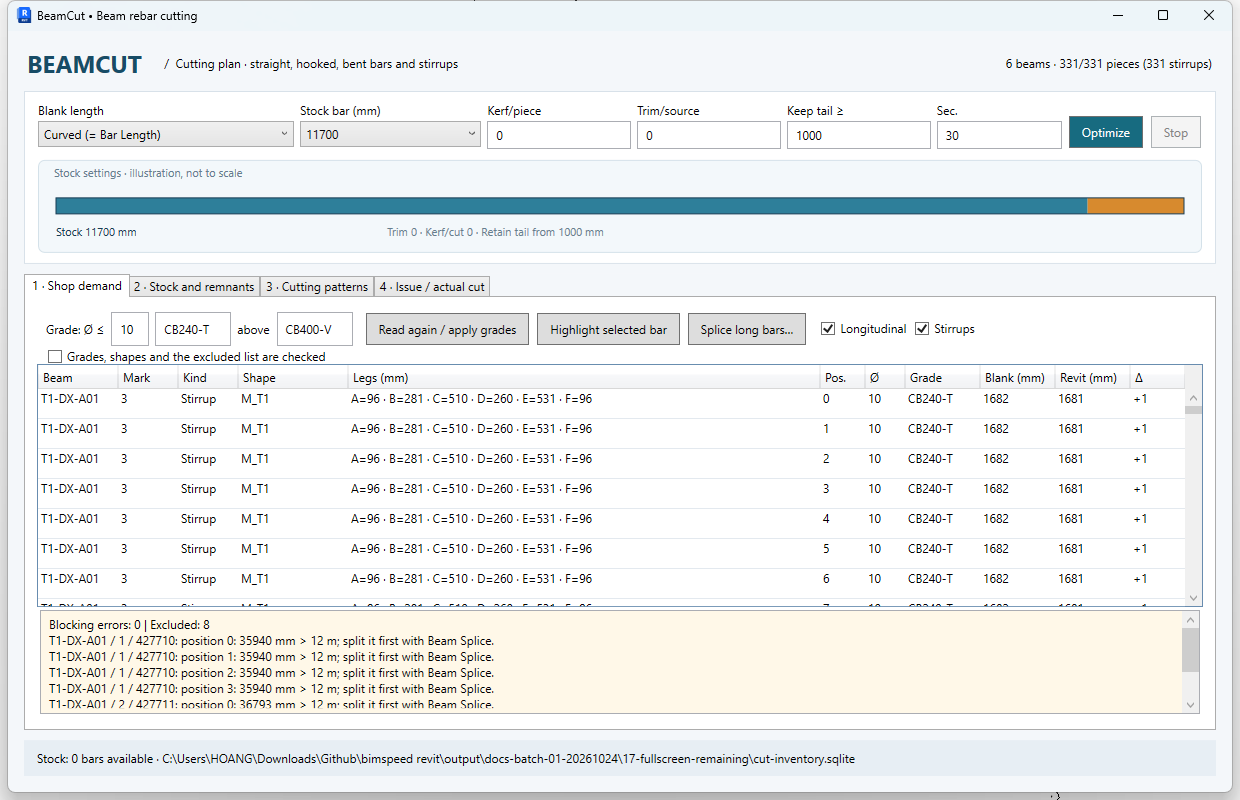
- Set blank-length method, stock length, kerf, trim, retained-tail threshold and time limit. Optimize creates a plan; it does not confirm physical cutting.
- Enter the grade rule and Read again / apply grades. Highlight selected bar and Splice long bars help inspect excluded positions; scope confirmation is directly below.
- Compare diameter/grade and Blank, Revit and Δ for each position. A row is a blank position, not necessarily a Rebar set.
- Review Excluded before confirming scope. The long longitudinal bars shown here are excluded from the 331-stirrup demand.
- The tabs follow Shop demand → Stock/offcuts → Cutting patterns → Issue/actual cut. Check each stage before progressing.
Every setting and action
| Control | Effect and verification |
|---|---|
| Blank length — CAD legs / Curved | CAD sums legs to centerline intersections; Curved follows bent centerline/Bar Length. Compare Revit and Δ columns; a difference is not automatically an error. |
| Stock bar — 11700 / 12000 | Standard stock length in mm; longer blanks need splitting/splicing first. |
| Kerf/piece | Loss per blank, a non-negative integer in mm. |
| Trim/source | Trim per stock source in mm; reduces usable length. |
| Keep tail ≥ | Minimum retained-tail length in mm; inspect tail classification. |
| Sec. | Optimization time limit; the allowed limit is 1–300 seconds. |
| Optimize / Stop | Optimize creates a plan from compatible blanks/stock. Stop cancels solving without reserving stock. |
| Grade threshold / small grade / large grade | Supply the diameter threshold and confirmed grades for the batch. Defaults do not verify actual material grades. |
| Read again / apply grades | Re-read the model with current grade/length rules; a changed fingerprint clears scope acceptance. |
| Highlight selected bar | Locate the selected demand row's rebar in the model. |
| Splice long bars | Open splicing for the same beams; re-read shop demand after applying changes. |
| Longitudinal / Stirrups | Filter longitudinal/stirrup demand; recheck counts and exclusions after changes. |
| Scope confirmation | Accept scope only after checking errors, grades, shapes and exclusions; Optimize requires it. |
| Shop demand table | Beam, Mark, Kind, Shape, Legs, Position, Ø, Grade, Blank, Revit and Δ describe blank positions. 331 rows are not 331 Rebar sets. |
| Issues / excluded list | Retain exclusion reasons; the long longitudinal bars in this case are outside the stirrup batch. |
| Stock — Refresh / warehouses | Refresh stock and select participating warehouses; only compatible Available sources are considered. |
| Receive — warehouse / bin / diameter / length / count | Receive actual stock with warehouse, bin/rack, diameter mm, length mm and count. No stock was received in the captured example. |
| New bar / QC passed | Distinguish new bars/remnants and QC state; unaccepted stock is not Available. |
| Stock inspection / quarantine controls | Update selected stock location/state based on actual inspection; do not relabel grades merely to satisfy demand. |
| Cutting patterns / grouping | Inspect bar counts, sources, blanks and tails; grouping combines display rows, not physical stock. |
| Cut diagram / proof | The diagram and solver status explain the plan; claim proven optimality only when the report establishes it. |
| Saved plans / Open | Open a saved plan; check the model fingerprint and stock version before issue. |
| Issue / reserve | Issue/reserve stock; distinct from draft optimization. Not exercised in the captured example. |
| Release uncut sources | Release uncut reservations; does not undo confirmed physical cuts. |
| Actual cut table | Mark cut sources, enter measured tails, receiving warehouse/bin and QC using actual measurements. |
| Cut confirmed / Tick all / Confirm cut | Confirm that produced blanks meet the shop drawing before receiving tails; these actions change stock state. |
| Export CSV / Print PDF / Export ledger | Export traceability, cutting lists or ledger. File export does not prove physical cutting. |
Captured states
These earlier four-tab captures show the English UI with empty test stock. The new native-host example below has a verified draft plan; its result capture is in Vietnamese. No issued cutting list is published. Excluded long bars require splitting/splicing and a fresh extraction; do not suppress exclusions to make a batch appear complete.
Verified optimization example on two native beams
In Revit 2024.3, native saved-result hosts 397189, 405566 yielded 93 piece positions. With Longitudinal selected and Stirrups off, the batch contained 8 pieces; the 85 stirrup positions were filtered out, not errors/exclusions. The R24 reader came from a source build; the production UI and worker used installed release 2026.10.23.2046. The actual Optimize action completed. Issue/reservation and actual-cut confirmation were not exercised.
This run's result screenshots have Vietnamese UI. The English screenshots elsewhere on this page remain the earlier UI reference; open the original Vietnamese plan capture or the full Revit capture for this run.
| Setting / result | Observed value |
|---|---|
| Measurement actually used | Curved centerline (= Bar Length), rounded up to 1 mm |
| Stock / kerf / trim / retained-tail threshold | 11700 / 3 / 10 / 1000 mm |
| Time limit | 5 seconds |
| Sample stock | 4D12 +4D20 new 11700 mm bars, DOCS TEST / TRAINING, example grade CB400-V |
| Used in the draft | 6 physical sources for 8 pieces |
| UI status | Draft · Optimal (4/4 objectives proven), as reported by this run |
| Scrap + kerf/trim | 84 mm |
| Planned retained tails | 25346 mm |
The stock is an isolated instructional dataset, not the user's inventory or confirmation of project material grades. Four D12 patterns each place 6675 mm with 13 mm loss and 5012 mm tail. Two D20 patterns each place 4030+5005 mm with 16 mm loss and 2649 mm tail. Independent checks confirmed every demand exactly once, matching diameter/grade, and blanks + loss + tail =11700 mm on every source.
All 8 sample stock bars remained Available after optimization; 6 occur in the draft, not an issued reservation or confirmed cut. Rebar set identities in the RVT remained unchanged. No private project RVT or user warehouse database is published with this guide.
From demand to a plan and cutting issue
- On a project copy, select the full beam run carrying continuous bars, then open BimSpeed.STR → Beam → Cut Beam Rebar. Check the beam count at the upper right, not only the blank count. For partial runs, inspect bars crossing the selection boundary.
- In Shop demand, choose the blank method, grade/diameter rule and longitudinal/stirrup groups, then Read again / apply grades. Highlight one row to locate the actual Rebar. Use Splice long bars for lengths outside the limit and extract again after model changes.
- Check exclusions and calculated inputs before confirming scope. Changed data or fresh extraction can require reconfirmation. All 331 blanks in this example are stirrups; the image does not establish a completed longitudinal-bar cutting batch.
- In Stock/offcuts, select eligible warehouses and Refresh. Receive/check actual sources by warehouse, bin, diameter, grade, length, quantity and QC. The empty test inventory in the capture is not site stock. Only available matching sources enter the plan.
- Set stock length, kerf, trim, retained-tail threshold and time. Click Optimize, then inspect Cutting patterns, blanks per source, bar totals, losses and tails. Stop cancels the search. A plan alone does not reserve stock or confirm physical cuts.
- Issue/reserve only after comparing the plan with the current model and stock version. In Issue/actual cut, mark sources actually cut, enter measured tails/receiving warehouse and QC, then confirm. Tick all is not a replacement for inspection. CSV/PDF/ledger exports support traceability; exporting does not prove cutting occurred.
Edit, save and reopen
After changing length method, selected groups or grades, extract demand again before optimizing. Increasing kerf from 0→3 mm per blank increases source consumption; Keep tail≥ classifies/retains the tail rather than extending the source. These describe configuration effects; comparative optimization was not exercised in this capture.
Save a plan through the tool, reopen it from Saved plans/Open, and recheck source/model state before issue. Save RVT preserves the model, while stock and cutting plans are managed separately. Model splicing needs its own inspected/saved RVT; releasing uncut reservations does not undo confirmed physical cuts. The two-host example reached a saved draft; it provides no issued or confirmed-cut download.
Download a Revit 2027 instructional reinforcement model: use school-service-result.rvt and the six-beam scope in its README. This is the stirrup reference example, separate from the eight longitudinal pieces in the Revit 2024 project above. Keep model, scope, grade rule and inventory distinct when repeating the exercise.