Create Analytical 1 and 2 — create the analytical model
Open BimSpeed.STR → Design → Create Analytical 1/2. These are separate workflows. Prepare suitable columns, beams, slabs/foundations and save an RVT copy before generation.
Version 1: scope, position and categories
| Control | Decision and verification |
|---|---|
| Active View / Select Element | Chooses host collection. For Select Element, select Revit elements and Finish. Inspect the host list before generation rather than assuming scope from the label. |
| Current | Creates at the current position. |
| Move (Column/Beam) | Creates column/beam data with a translation. Requires picking a planar face, origin and destination in Revit. Cancelled selection does not provide a valid translated case. |
| Structural Column | Includes structural column hosts. |
| Structural Framing | Includes beam hosts. Inspect analytical member direction afterward. |
| Floor | Includes floor hosts for analytical panels. |
| Foundation | Includes supported foundation hosts; this is not a guarantee for every foundation family. |
| All / Created / Errors | Filters result rows; does not delete model elements. Review Errors after generation. |
| Category / Type / View | Identifies and locates hosts. This list does not replace inspection of actual analytical elements. |
| Ok / Close | Ok requests Revit generation. Close closes the window. |
Version 2: tolerances and splitting
Distances are in mm. Source defaults are 300 / 500 / 500 / 300 mm; these are software defaults, not design requirements.
| Setting | Effect |
|---|---|
| Column to Grid | Acceptance distance for aligning column lines to a suitable nearby grid. Reduce it if nearby grids cause unintended alignment. |
| Beam to Grid | Beam/grid acceptance distance. Inspect direction and endpoints. |
| Column to beam | Distance used to relate column and beam lines; inspect their analytical junctions. |
| Elevation | Distance for recognizing a nearby Level, not an absolute destination elevation. |
| Save | Visible checkbox, but its value is not consumed by the reviewed Run implementation. Do not treat it as RVT Save or a guarantee that creation will be suppressed. |
| Shaft | Includes shaft openings in panel processing. Inspect opening boundaries after creation. |
| Split beam by grid | Splits beam lines at grids according to this option. |
| Split beam by column | Splits beam lines at columns. |
| Split column by level | Intended to split columns by story. The reviewed XAML binds this checkbox to the same property as Split beam by column, so the switches are not independent. Inspect individual segments. |
| ActiveView / Selected | The reviewed ActiveView branch uses document-wide collectors. Use Selected and verify the selection to constrain processing. |
| Ok / Close | Ok creates/changes data using these settings; Close closes the window. |
Inspect the generated model
Open an analytical view and select a representative Member/Panel. Check its category, Structural Role, boundary and elevation in Properties. Inspect column/beam connections, slab boundaries and shafts. Use Check Analytical and Optimize on a copy. Created rows do not establish correct connectivity.
This practice set has no reopened result from the complete Create Analytical 1/2 workflow. Binding and scope caveats follow the reviewed source and should be rechecked after upgrades.
Start with a small area
In version 1, start with Current, enable one category and use Select Element for a few identifiable hosts. Press Ok, finish the Revit selection when prompted and inspect All. Use Created to review processed hosts and Errors to find hosts requiring attention. A row's view button locates its host; select the resulting Analytical element separately to distinguish output from physical geometry. An empty table warrants checking categories, selection and geometry before another run.
Use Move (Column/Beam) only when a displaced analytical representation is intended. Follow Revit's prompts for a working plane, source point and destination point. Verify the displacement on one member first; this does not set Shared Coordinates. A displaced result should not be mistaken for an analytical representation at the original host position.
In version 2, set all four distance thresholds before Ok. For example, change Beam to Grid from 500 to 100 mm on a copy: a beam more than 100 mm from a grid may no longer snap as before. Compare endpoints rather than only member counts. Splitting at grids can change segment counts; toggling Shaft requires checking panel openings. These are sensitivity checks, not recommended design values.
Edit, undo and save
Save an RVT checkpoint before creation. Afterwards inspect a column crossing levels, a beam–column joint and a slab boundary. Do not assume another run replaces existing analytical elements: compare IDs and check duplicates. If scope or thresholds are wrong, Undo to the checkpoint, change one setting group and repeat. Close dismisses the window; version 2's Save checkbox does not replace Revit Save/Save As. Save the checked RVT and open a copy in another session to confirm that the Members/Panels persist.
Identify the two windows
Actual English tool UI in Revit 2024.
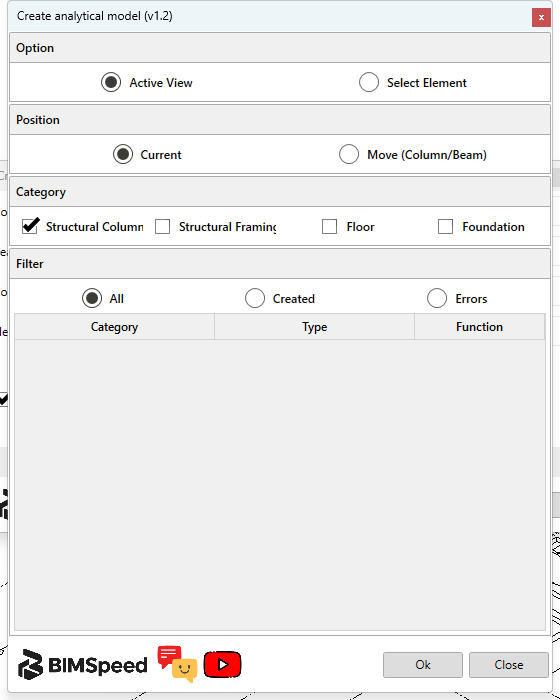
① Host scope; ② current position or displaced columns/beams; ③ categories; ④ result filters and host table; ⑤ run or close. The empty table is the pre-creation state, not evidence of completed processing.
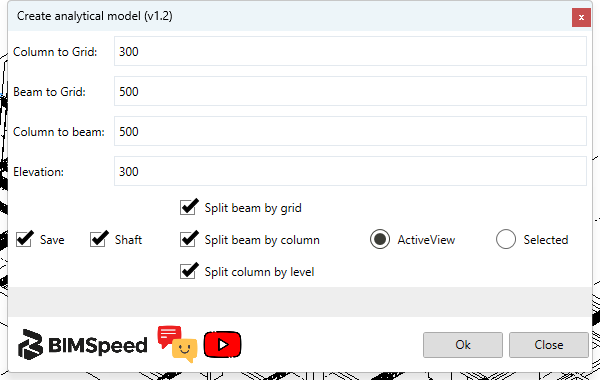
① Four distance thresholds; ② save/split/shaft and scope controls; ③ Ok/Close. Review scope and option limitations above before a project-wide run.
The bottom-left logo/Feedback/YouTube icons are explained under Design help buttons.