Sheet placement and crop tools
The steps and conditions below follow the current implementation. Runtime evidence is identified separately; availability of every command on the installed ribbon has not been verified.
Open BimSpeed.ARC → Drawing. Use a test sheet with a title block and separate views. Record Scale, viewport centre, Viewport Type and Detail Number. Most views have single-sheet placement restrictions; legends have different reuse rules.
Place Views on Sheets
In Sheets, choose a Title Block; add/remove actions manage the proposed sheet list. Select Current Sheets selects existing sheets. Views / Schedules / Legends select the content kind. Select Views opens a searchable checkbox list. Viewport Type selects the viewport label style. Schedule/Legend search filters lists. Assign content to its target sheet and Apply, then inspect the actual sheets and unplaced views.
Export To Excel / Import From Excel exchange sheet–view assignments rather than drawing images. Verify view names and sheet numbers after import; export a template from the same release. Close exits. S1/S2 rows can be Debug seed data and are not proof that sheets exist in the model.
Add Views and Duplicate Sheet
These separate entries share sheet-management controllers. Open the target sheet for Add Views; search and filter Legend / Schedule / Remaining Views, then choose View Type and Viewport Type. Duplicate Option determines duplication behaviour; Quantity sets copies. Duplicate and Duplicate Sheet create copies for their respective tasks; Go To Sheet only opens a sheet. Check copied annotations, names, sheet numbers and already placed views. Full duplication/placement cases remain pending.
Arrange Views
The active view must be a ViewSheet. The command derives available space from the Title Block and packs viewports by size. It does not automatically change view Scale to guarantee fit. Missing title blocks or unsuitable border geometry can impair arrangement. Check viewport centres, bounds, labels and overlap after running.
CropBox Override
| Control | Effect |
|---|---|
| Visible / Half Tone | Crop-line visibility and tone, without deleting crop or model geometry. |
| Pattern / Color / Weight | View-specific crop graphics. |
| All Views / Selected Views / Pick View Ports / Active View | Override scope; viewport picks refer to their underlying views. |
| Reset / Ok / Close | Reset overrides, apply or exit. Check the view and printed output. |
CropBox Setting and By Pick Rectangle
Settings provides Top, Right, Bottom, Left and Annotation Crop. Establish displayed units and scale using one measured region. By Pick Rectangle repeats region selection until Esc and activates crop as needed. In 3D, picked points are transformed into CropBox coordinates. Check the crop in the actual view plane. Model crop and annotation crop are distinct; a small annotation crop can hide labels/dimensions.
Move Crop View / Edit Crop View
Move Crop View requires an open sheet. Confirm the viewport target before adjusting it. Edit Crop View opens a separate crop-editing window. The HTConstruction windows have not been captured in this pass, so their complete modes and units are unconfirmed. Verify crop and viewport centre separately.
Move 3D View
This ribbon label opens axis Move/Copy or Array along a path with element selection, distance and operation mode. It should not be interpreted as a camera-only tool. Distance conversion in the installed release remains unverified; measure displacement and copy counts on a test model first.
Source-mapped Move Crop / Edit Crop controls
Move Crop has Move: dX/dY/dZ (mm) and Offset (mm) tabs; positive expands and negative contracts. Select viewports or Select/Deselect All, then Apply; Close exits. Edit Crop rounds crop corners using Top Left/Top Right/Bottom Left/Bottom Right, Radius (mm) and Segments. Pattern, Color and Weight set graphics. Scope is Current View / Current Sheet / Selected Views. Save Settings saves preferences; Execute applies them and Cancel exits. The view list appears only for its corresponding scope. These controls remain runtime-unverified.
Move 3D has Move/Copy, ±X/±Y/±Z, a displayed millimetre distance and copy count. Array uses count ≥ 2 or spacing; after Apply, select elements and a Line/Arc/Spline path. Actual displacement still needs measurement because conversion has not been runtime-verified.
Compare the three real windows
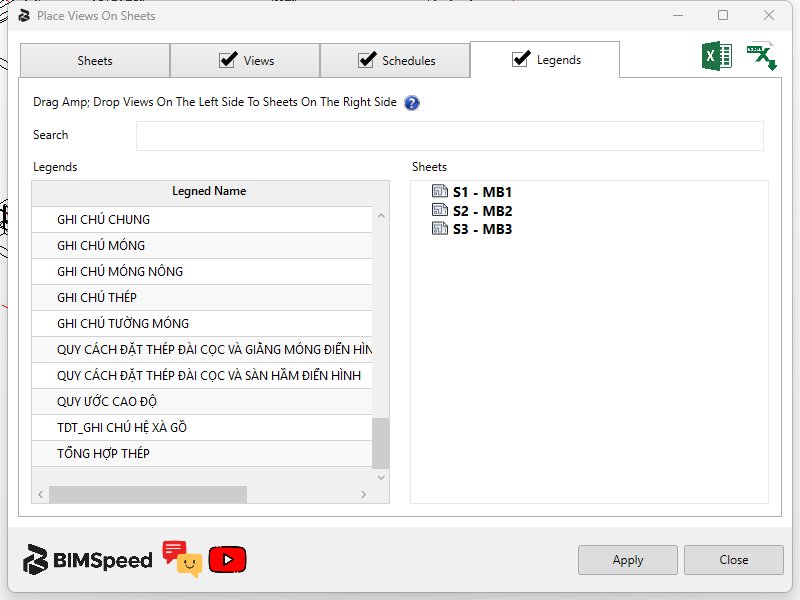
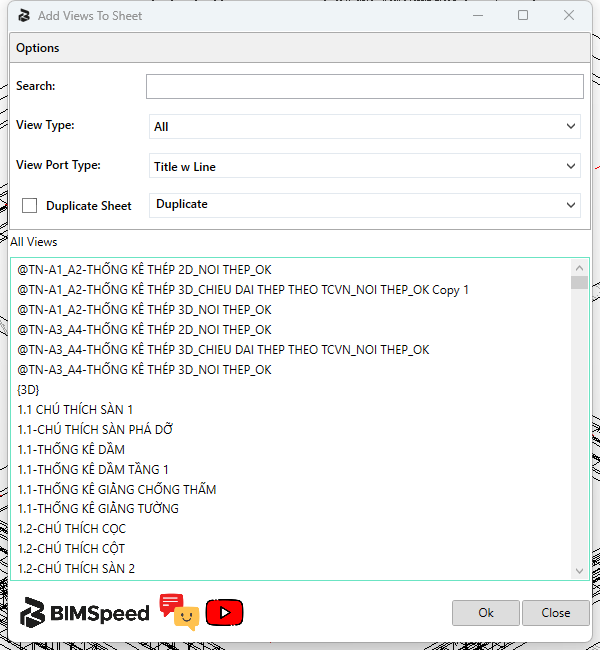
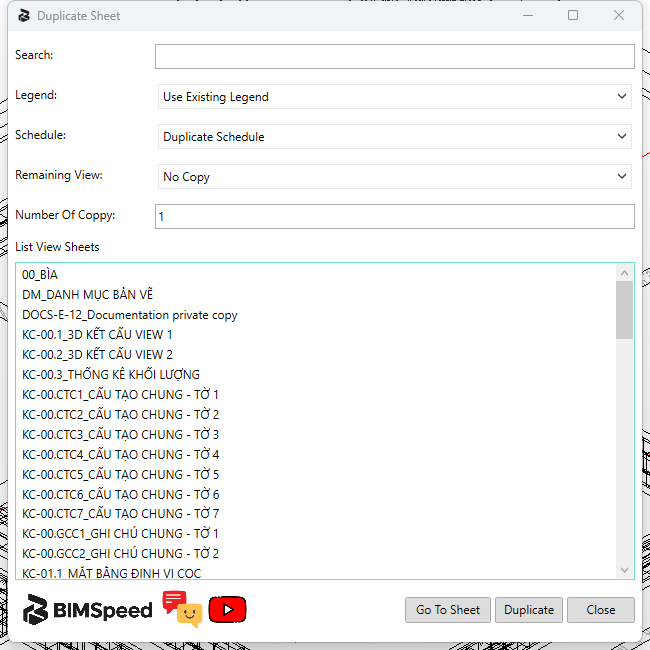
These controls are English; sheet/view names are project data. Place Views prepares assignments before Apply; Add Views targets a sheet; Duplicate Sheet has separate content policies. Their buttons are not interchangeable.
In Place Views, enable ① Legends, find an item in ②, drag it to the intended sheet ③, then ④ Apply. Dragging edits the prepared table. S1–S3 in this image are UI rows, not proof of model sheets. Legends may be reused; an ordinary view already placed elsewhere usually needs duplication.
In Add Views, ① Search filters the list, View Type limits view categories and View Port Type chooses the viewport title type. Duplicate Sheet enables the copy branch and its option list. Select views in ②, then ③ Ok. Verify the active target sheet: a view name alone does not establish position, scale or title type.
In Duplicate Sheet, ① Legend / Schedule / Remaining View are independent policies: reuse, duplicate or omit content according to each list's available choices. ② Number Of Copy controls sheet quantity; select source sheets in ③. ④ Go To Sheet navigates only, Duplicate creates copies and Close exits. Search filters sources. The image shows initial values, not every executed option.
Check the duplicated sheet
The production sheet-copy helper created KC-04.1.1 from KC-04.1 in a project copy, retaining 21 viewports and their measured centres. Three legends reused existing views; 18 other views were new, at 1:25 in this run. This exercises the helper rather than the ribbon entry's picking/button path.
Check before issue: all copied viewport types became Title w Line, whereas sources included No Title and custom types. Restore intended viewport types, then check titles, detail numbers and overlaps. Matching centres does not establish an unchanged layout. Reused legends do not prove that annotations were copied into the 18 new views. Save separately and reopen the sheet to inspect an actual dimension/text in a newly created view.
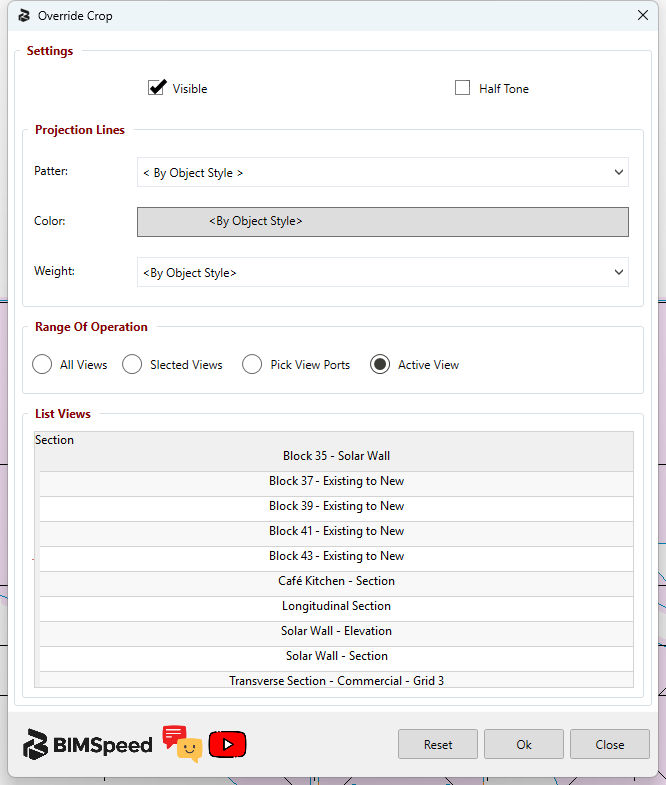
CropBox Override: real controls and Reset scope
In ①, Visible controls the crop outline and Half Tone fades it. Pattern uses project line patterns; By Object Style uses object defaults. Color opens RGB selection; Weight is a line weight, not a width in mm. These settings concern the crop outline rather than model-element lines or Annotation Crop extents.
Choose ② before Ok: All Views is broad; Selected Views uses rows selected in ③; Pick View Ports uses the referenced views; Active View uses only the open view even while other rows remain listed. In ④, Reset returns only Color, Weight and Pattern to By Object Style in the window. It does not reset Visible, Half Tone, scope or undo committed overrides. Ok accepts settings; Close exits. After applying, inspect Crop Region Visible and the outline in the target view/export. Line weight does not change Scale or model extents.