Door legends, assemblies and WC deployment
The steps and conditions below follow the current implementation. Runtime evidence is identified separately; availability of every command on the installed ribbon has not been verified.
Open BimSpeed.ARC → Door, Window / WC. Doors, windows and curtain walls have distinct workflows. Use a practice model with loaded families, Type Marks and dedicated sheets/views, then inspect scale, view type and annotation references.
Door legend
Select Door/Window lists Image, Type Mark, Category and Name. Select types individually or Select All; Load Families supplies required content. Setup moves Available parameters to/from Selected. Up/Down changes ordering and Translated Name changes output headers.
| Group | Controls and verification |
|---|---|
| Upper/lower tags | Show / Not Show with title/mark and family-name parameters. Check instance/type sources. |
| Material text | Show material descriptions; verify source values. |
| Additional Settings | Frame Yes/No, Front/Back, Dimension Type and Frame Offset. Check door orientation and dimension styles. |
| Format text | Enable Text Labels enables Text Style and Plan/Elevation/Interior/Exterior labels. Interior/Exterior applies to windows and depends on text labels being enabled. |
| Scale | Choose the scale and inspect the actual Legend View Scale. |
| Sheet | Create New Sheet or Use Existing Sheet. The selector searches number/name; existing sheet display fields are read-only. |
| Run | Generate and inspect each type's family, geometry, labels and placement. |
Update Door Legend
Updatable Legends lists Legend View, Door Type, Source Family and Status. Select rows or Select All, then Run Update. It updates source-associated legends rather than rebuilding every project legend. Change one source type on a copy and compare dimensions, labels and manual edits after update. New update/manual-edit preservation evidence remains pending.
Door Assembly
Validation accepts curtain walls, doors or windows. Select sources, then configure Floor Plan, Scale, Include Panels, Include Mullions and Include Doors/Windows. Detail Views (Front, Section, Plan), 3D Orthographic and Add Dimensions control generated content. Create Sheets enables Title Block, Sheet Prefix and Starting Number. Create Assembly runs; Cancel exits. Check assembly membership, views and dimension Properties. This is separate from a 2D legend.
Door Callout
The current entry requires Curtain Walls. Selection provides Pick Curtain Wall, Pick Both, Clear Selection, Refresh and suggestions. View Configuration offers Plan Callout, Front/Back, Left/Right End Section and 3D, plus Scale, View Template, Naming Prefix, Auto-crop and Hide Annotations. Some Advanced Options checkboxes for curved/multi-segment walls and depth are set to True in XAML without established engine bindings; their presence is not proof of curved-wall support.
Sheet Options has Create Sheet, Title Block, Number, Name and Layout. Create Views depends on CanCreateViews. New output/crop/sheet evidence remains pending.
Door Legend Manager
This is a separate management entry in BimSpeedLegend. Its complete live controls and update/delete behaviour have not been captured. Inspect the managed legend list on a copy before any broad write/delete operation.
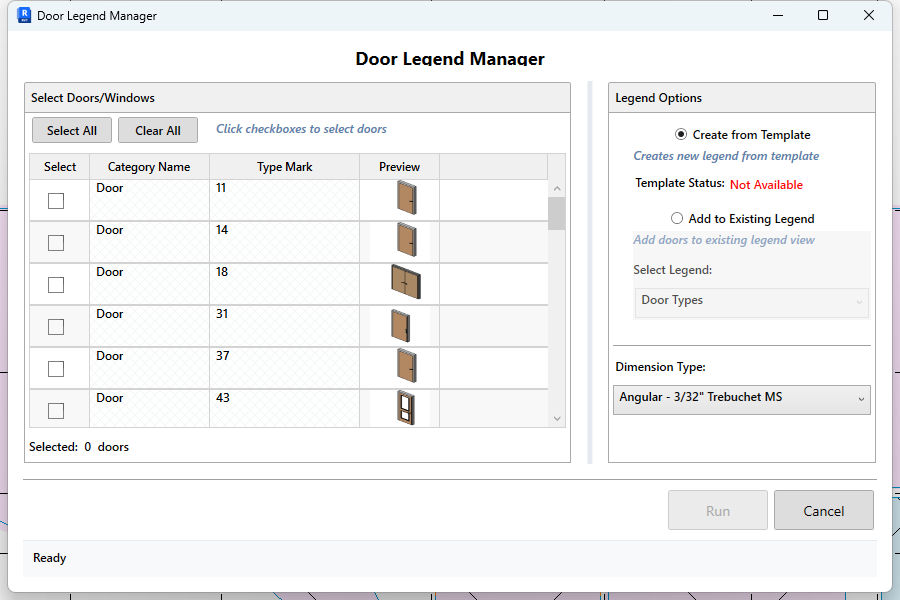
Manager controls: Select All / Clear All changes selected types in Category Name, Type Mark and Preview rows. Choose Create from Template or Add to Existing Legend; the Legend selector is enabled only for adding to an existing legend. Choose Dimension Type, then Run; Cancel exits. Verify types and target legend first. This is a create/add workflow, not an established delete command.
WC — Create View Callout
This entry now opens CreateViewCallout2 despite lacking “2.0” in its ribbon label. It has Save/Delete/Import presets, multiple callout names/suffixes/templates, Top/Bot/Left/Right elevations with Pick Point, a 3D name/template, Base/Top Offset and separate plan/elevation sheets. Select Sheet chooses existing sheets; Pick Callout defines the source and Run generates. Identify the actual window first because legacy XAML remains in the repository.
WC — Create View Callout 2.0
The CalloutRoomDeploy entry requires a ViewPlan containing Rooms. Select Room/Callout scope from Active View, All In Project or Pick. Pick controls are enabled only in Pick mode. Filter Room Name filters rows; check rows and use Edit View.
Configuration includes callout type/template, prefix/suffix or Start/Step, Callout Offset and Grid/Level Offset; elevation/section, Top/Bot/Left/Right, type/template, Far Clip and section spacing; 3D name/template and Base/Top Offset; and plan/elevation sheets. Save/Delete Setting manages presets. View Graphics and Create Callout perform different actions. Offset units, all subdialogs, committed output and final WC layout remain unverified in the new pass; inspect scale, crop and directions before release.
Manager: check template, dimension type and type scope
① Select All / Clear All change row checkboxes. Selected counts chosen type rows, not every door instance in the project. With0selected here, Run is disabled. ② Create from Template requires Template Status=Loaded; this image reports Not Available, so it is not a valid create-new state. Add to Existing Legend enables a target legend choice; verify that view before running. This differs from Update Door Legend.
③ Dimension Type includes Angular, the initial value shown. Choose a suitable Linear style for linear dimensions rather than assuming the first item is correct. ④ Run executes the current mode; Cancel exits. Opening Manager may attempt to import its template into the working copy. Cancel does not remove templates already imported successfully; inspect changed views/types before saving.
Door Legend: required family missing even with tags off
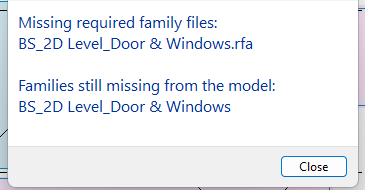
On a model containing native doors, Load Families reported missing BS_2D Level_Door & Windows.rfa. Validation remained Missing Level Family with both tag directions off. This is required by Door Legend, not merely an optional tag family. Use a compatible resource set with the exact family name; load it through Load Families or Insert→Load Family, then recheck Family Loading Status. Renaming an unrelated family does not satisfy this dependency. No new legend result is verified for this blocked branch; the real warning is retained below.