Copy Elements, Copy Object From Link and Copy Legends
The three BimSpeed.ARC → Utilities commands handle different data. Open source/target copies and verify document names before Transfer. Copying definitions, linked instances and Legends are separate workflows; older ribbon labels may spell Coppy.
Observed Revit images
Captured in Revit 2024 on a project copy using tool windows opened independently. UI screenshots do not establish the complete ribbon/picking/generation flow. Click an image to open the unchanged original at full resolution.
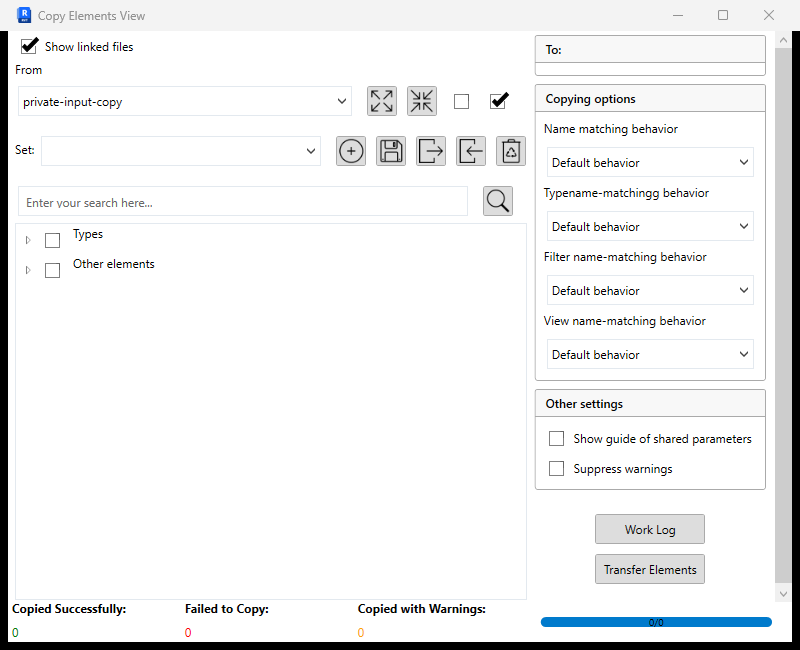
- Choose the source document, saved set and content. Types/Other elements are still collapsed.
- Choose targets and name-conflict options; no target is selected here.
- Shared GUID, suppress warnings, Work Log and Transfer Elements.
- All counters are zero; no elements were copied in this capture.
Copy Legend — top
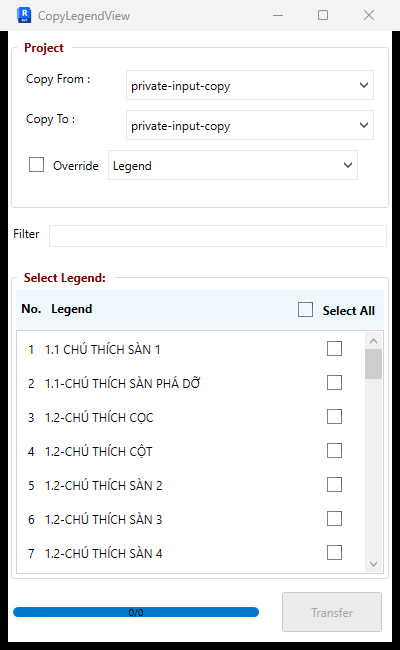
- Source/target documents and view kind; both default to the same document here, so choose the intended distinct destination before running.
- Name filter.
- Actual legend rows and selection boxes; scrolling changes the visible list only.
- Transfer is disabled because nothing is selected; no views were copied.
Copy Legend — bottom
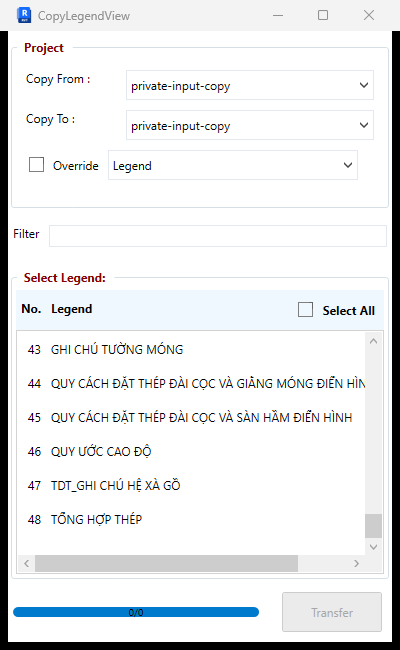
- Source/target documents and view kind; both default to the same document here, so choose the intended distinct destination before running.
- Name filter.
- Actual legend rows and selection boxes; scrolling changes the visible list only.
- Transfer is disabled because nothing is selected; no views were copied.
Copy Object From File Link: no loaded link source
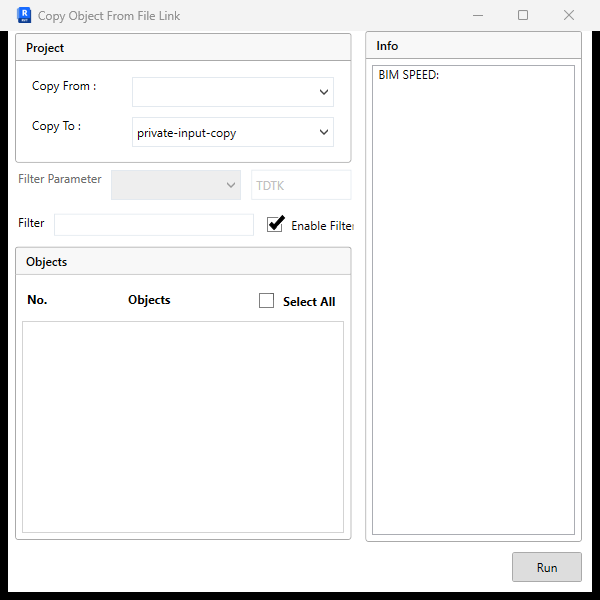
- Copy From is empty in this project. Select the intended loaded RevitLinkInstance; the destination is the project copy.
- Filter Parameter/Filter and object rows depend on the link; the list is empty here.
- Info displays run information.
- Run was not invoked; this image does not establish copy/transform output.
Copy Elements
| Control | Decision |
|---|---|
| Source project / Show linked files | Select the source; include loaded linked documents when required. A source list is not a target change. |
| Category/type tree and checkboxes | Select items to transfer. Expand/Collapse changes tree display, not selection or model data. |
| Search / search button | Finds/filters names; recheck retained selections after changing the filter. |
| Preset / Add / Save / Delete | Manages selection presets. Delete removes a preset, not project elements. Confirm its name with OK in Save Name. |
| Export / Import setting | Transfers configuration files. Recheck mappings when source families/types change. |
| Target document checkboxes | Choose the intended open targets and inspect every target RVT afterward. |
| Name matching | Default behavior, Use destination document names or Abort paste. The reviewed path uses destination types for the first two; Abort cancels a conflicting item for inspection in the log. |
| Type / Filter / View name matching | Default behavior, Replace, Abort paste and Ask are listed. The reviewed code assigns these handlers, then replaces them with the final Name handler, so independent effects are not established. Replace/Ask handlers also use destination types rather than establishing replacement or a prompt. Check the actual target and version. |
| Show shared-parameter GUID | Distinguishes same-name parameters; different GUIDs do not become one parameter. |
| Suppress warnings | Reduces prompts, without establishing success. Keep Work Log and inspect target elements. |
| Work Log / Close | Opens/closes the processing log. |
| Transfer Elements | Transfers the selected items to selected targets, rather than merely saving a preset. |
Start with one recognizable type/view. Compare category, name, GUID, values and materials in the target. Repeat under a deliberate duplicate-name policy to inspect replacement/retention/duplication. Undo belongs to the target document, not just the source.
Copy Object From Link
Choose the From link instance, To target document, object rows, search text and Select All or individual checkboxes. Enable Filter enables Parameter Name / Filter Value filtering; test a known value and compare counts before Run. A loaded file can have several instances with different transforms; the reviewed path uses the chosen instance's Total Transform.
Inspect target coordinates, rotation, Level, category, type and host relationships. Compare filter on/off counts. Unloaded links, unsupported element types or missing hosts can prevent copying; compare actual target IDs rather than only a completed list.
Copy Legends
Select From / To, Type = Legend / Schedule / Detail / DraftingView, name filter and Select All or individual rows. Override deletes a same-name target Legend before copying; without it that Legend is skipped. The reviewed duplicate lookup searches ViewType.Legend only, so do not assume identical overwrite behavior for Schedule/Detail/DraftingView. This is not a View Template transfer command.
Transfer runs; progress reports processed items rather than identical content. Open the actual target view/schedule and compare symbols, text, annotations and scale. Save/reopen the target and check one item before a batch transfer.
Observed build and verification scope
The three Copy Elements, Copy Legend and Copy Object From File Link windows were opened separately. No loaded link appeared in Copy From; Copy Legend had no selected content/distinct target and Copy Elements counters remained zero. These images establish UI/input state, not completed transfer, duplicate handling or link transforms.