Second brain: the Brain folder
The Brain is an ordinary folder on your computer where BimSpeed AI keeps general rules, your skills, reference documents and per-project notes. The assistant reads it at the start of every chat, so you only have to say things once.
BimSpeed AI is in testing. The folder layout may change before the official release.
Default location
Documents\BimSpeed AI
The folder is created automatically the first time you use the pane. BimSpeed only creates files that do not exist yet and never overwrites a file you edited.
To open it: press the Brain button at the top of the pane and then Open folder, or type /brain.
What is inside
BimSpeed AI\
├─ AGENTS.md                 general rules for the assistant (you can edit)
├─ CLAUDE.md                 copy of the rules for Claude Code
├─ .claude\skills\           your skills
│   ├─ README.md
│   └─ vi-du\SKILL.md        example skill
├─ knowledge\                reference documents shared by all projects
│   └─ README.md
├─ templates\                your templates
└─ projects\
    └─ <model name>-<code>\  one folder per model
        ├─ PROJECT.md        model information
        ├─ memory.md         agreed values
        ├─ chats\            saved chats
        └─ outputs\          reports the assistant creates
| Item | What it is for |
|---|---|
AGENTS.md | General rules for the assistant (how to answer, how to handle situations, what to remember). Add your company's own conventions at the end of this file; the assistant reads it in every chat |
CLAUDE.md | A copy of the rules for Claude Code. Write your own conventions in AGENTS.md |
.claude\skills | Skills you write yourself, see below |
knowledge | Reference documents: TCVN standards, company rules, rebar tables, naming conventions... |
projects\...\PROJECT.md | Created automatically the first time the model is opened: name, path, Revit version, grid count, levels. You can add the client, applicable standards and conventions |
projects\...\memory.md | The assistant writes the values and decisions you agreed on (with the date). You can edit it by hand |
projects\...\chats | The contents of this model's chats, used by /resume |
projects\...\outputs | Reports and tables the assistant creates (for example the model check report) |
Each model has its own project folder, created from the model name. Unsaved models share one temporary folder, so save the model early to get its own.
How the assistant uses the Brain
- At the start of a chat, the assistant reads the
PROJECT.mdandmemory.mdof the open model. - Before asking you for a value, it checks
memory.mdand then theknowledgefolder. - When it uses a value taken from a document, it names the source file so you can verify it. With no source, it asks you instead of inferring structural reinforcement.
- When you agree on a value (cover, default bar type, naming convention...), it records it briefly in
memory.md. - Result files are written to
outputs.
Add your own documents
- Copy the documents into the
knowledgefolder. - Prefer
.mdor.txt(UTF-8). PDFs can be read but are slower and tables may be misread; add an.mdcopy of the part you need. - Give files meaningful names, for example
TCVN-5574-2018-lop-bao-ve.md,quy-dinh-cong-ty-thep-dam.md. - Create an
INDEX.mdlisting each file with one line of description so the assistant finds things fast.
Conventions that apply to every project (for example "always ask for the cover before placing rebar") belong in AGENTS.md at the Brain root.
Add your own skill
Each skill is one sub-folder containing a SKILL.md file:
Documents\BimSpeed AI\.claude\skills\<skill-name>\SKILL.md
-
Create a new folder in
.claude\skills, with a name that has no accents or spaces (for examplecheck-tags). -
Create a
SKILL.mdfile in it, starting with a header block between two---lines:---name: check-tagsdescription: "Check that beams are tagged. Use when the user asks to check tags."---# Check beam tagsUser request: $ARGUMENTS1. Read PROJECT.md and memory.md of the project.2. List the beams in the model.3. Ask the user if information is missing; do not guess.4. Report briefly and record agreed values in memory.md. -
namemust match the folder name.descriptionsays when to use the skill. If you write both Vietnamese and English, separate them with/(Vietnamese first); the pane then shows the half that matches the interface language. A description in a single language is shown as it is. -
The part below is the step-by-step instructions for the assistant.
$ARGUMENTSis replaced with whatever you type after the skill name. List the steps in order, say which values must be asked from the user and what to record inmemory.md. -
Save the file as UTF-8 without BOM (Notepad and VS Code both can).
-
In the pane, press New or type
/new. The skill appears in the Your skills group; call it with/check-tags.
See the example skill vi-du in the same folder.
A skill is just written instructions for the assistant; every write to the model still goes through the permission card and follows your Access level. Even so, read a skill before you use it, especially one you received from someone else.
Change the Brain folder
To put the Brain on another drive or in a folder shared by your team:
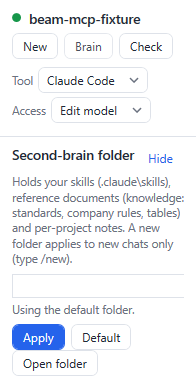
- Press the Brain button at the top of the pane. The Second-brain folder section opens (you can also type
/brain config). - Enter the full path, for example
D:\BimSpeed AI. It must be a sub-folder, not a drive root. - Press Apply.
- Type
/newso the new chat uses it. The new folder applies to new chats only.
Other buttons in this section:
| Button | Effect |
|---|---|
| Default | Back to Documents\BimSpeed AI (or type /brain reset) |
| Open folder | Open the current folder in Explorer |
| Hide | Collapse the settings section |
You can also type /brain set D:\BimSpeed AI.
BimSpeed does not copy skills, documents and notes from the old folder to the new one. To keep them, copy the contents to the new folder yourself before you use it.
Backup and sharing
The Brain is an ordinary folder, so you can back it up, sync it or copy it to another computer. The projects folder holds the contents of your chats, so think before you share it. See Safety and privacy.