Install and sign in to an AI tool
The BimSpeed AI pane runs a command-line tool (CLI) on your computer. You need to install and sign in to one of three tools: Claude Code, Codex or Antigravity (agy). You do this once.
BimSpeed AI is in testing. The commands below come from each tool's official page, checked on 24 Oct 2026; providers may change them later. If so, follow the official page linked in each section.
For all three tools
- After installing, open a new terminal (PowerShell or CMD). Old windows do not have the new PATH.
- Run the sign-in command once and follow the browser window that opens.
- Go back to Revit and press Check again in the BimSpeed AI pane. No Revit restart is needed: the pane re-reads PATH and probes the standard install folders, so a freshly installed tool is found right away.
Each install command has a Windows PowerShell version and a CMD version. Run the one that matches the window you have open (see Common problems).
Claude Code
Account you need: Claude Pro, Max, Team, Enterprise or Console. The free plan does not include Claude Code.
Requirements: Windows 10 1809 or later. No Administrator rights needed. Git for Windows is optional and not needed by the pane.
-
Install (Windows PowerShell, recommended):
irm https://claude.ai/install.ps1 | iexAlternatives:
:: CMDcurl -fsSL https://claude.ai/install.cmd -o install.cmd && install.cmd && del install.cmdwinget install Anthropic.ClaudeCodenpm install -g @anthropic-ai/claude-codeThe npm install needs Node.js 22 or later.
-
Sign in: open a new terminal, run
claude, follow the browser window, then type/exit.claude -
Verify:
claude --versionclaude auth statusclaude --versionprints a version number. When you are signed in,claude auth statusprints"loggedIn": true.
Official page: https://code.claude.com/docs/en/setup
Codex
Account you need: ChatGPT Plus, Pro, Business, Edu or Enterprise (or an OpenAI API key).
-
Install:
powershell -ExecutionPolicy ByPass -c "irm https://chatgpt.com/codex/install.ps1 | iex"Or with npm (needs Node.js and npm):
npm install -g @openai/codex -
Sign in: run
codex, choose Sign in with ChatGPT and follow the browser.codex loginalso works. For an API key, follow the official docs.codex -
Verify:
codex --versioncodex login statusWhen you are not signed in,
codex login statusprintsNot logged in.
If Codex lives in a folder other than the usual install folders, add that folder to your user PATH, then press Check again in the pane.
Official page: https://developers.openai.com/codex
Antigravity (agy)
Account you need: a Google account (personal or Business).
Requirements: Windows 10 (64-bit) or Windows 11.
-
Install (Windows PowerShell, recommended):
irm https://antigravity.google/cli/install.ps1 | iexOr CMD:
curl -fsSL https://antigravity.google/cli/install.cmd -o install.cmd && install.cmd && del install.cmdagyinstalls to%LOCALAPPDATA%\agy\bin. If a new terminal does not recogniseagy, add that folder to PATH or runagy install. The BimSpeed AI pane still findsagyin this folder on its own. -
Sign in: run
agy. The first time it opens your browser to sign in with Google (or choose Business account). Exit with/exit.agy -
Verify:
agy --versionagy modelsagy modelslists the models once you are signed in.
Official page: https://antigravity.google/docs/getting-started
- Every chat turn starts a fresh
agyprocess, so each answer takes about 2 to 3 seconds longer. - Stop ends the process; your next message resumes the same chat.
- With Antigravity selected, the pane shows an extra Model box to pick a model listed by
agy models(the default is agy default). - The pane does not modify your
agyconfiguration, and MCP servers you set up inagyare not loaded into the pane's chats.
The First-run check
When you open the pane, First-run check tells you whether your computer is ready. Press Check at the top of the pane to run it again at any time, and Hide to collapse it. Each line has one of these states:
| Line | Meaning | What to do |
|---|---|---|
| Tool found / Tool not found | Whether the pane can see the AI tool chosen in the Tool box | Not found: press Open install page, install, then press Check again |
| Signed in / Not signed in | Whether you are signed in | Press Open sign-in terminal, sign in once, then come back |
| Sign-in status unknown | The pane could not confirm (timeout or the check did not run) | Just send a message: if you are not signed in, the pane tells you clearly and opens a sign-in terminal |
| BimSpeed MCP bridge ready / BimSpeed MCP bridge missing | Whether the component that connects the AI tool to Revit is present | Missing: update BimSpeed again |
| Connected to Revit / Not connected to Revit | Whether the agent can call BimSpeed tools | Not connected: press Connect to Revit |
A ✓ means the line is fine. With all four lines ✓ you can start chatting.
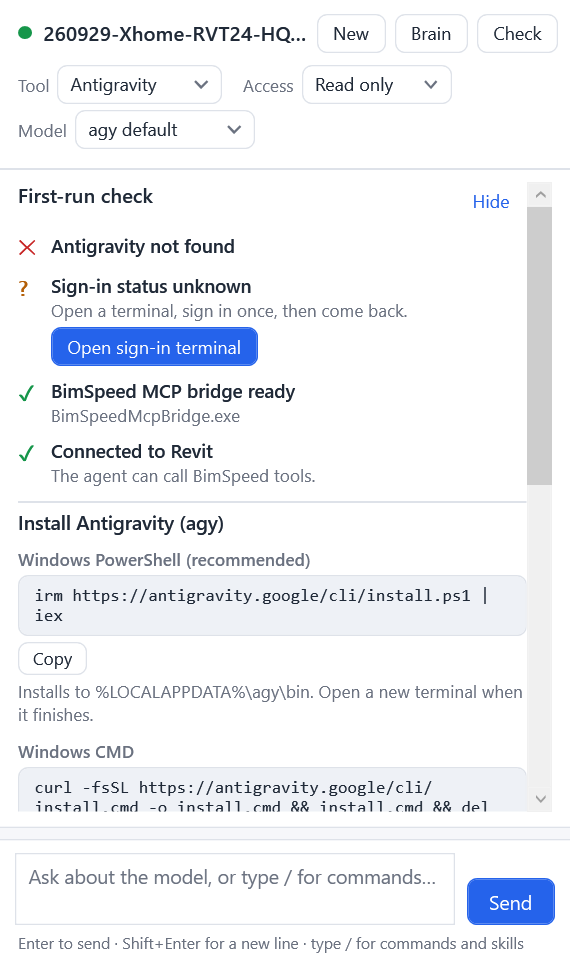
When a tool is missing or not signed in, the First-run check also shows an install guide card with the commands above.
The guide card and the /install command
The guide card lists the requirements, install commands, sign-in command and verify commands for the selected tool. Each command has a Copy button to copy it to the clipboard and paste it into a terminal. Open the official guide opens the provider's page.
To see this card again at any time, type in the chat:
| Command | Result |
|---|---|
/install | Guide for all three tools, the selected one first |
/install claude | Claude Code only |
/install codex | Codex only |
/install agy | Antigravity only |
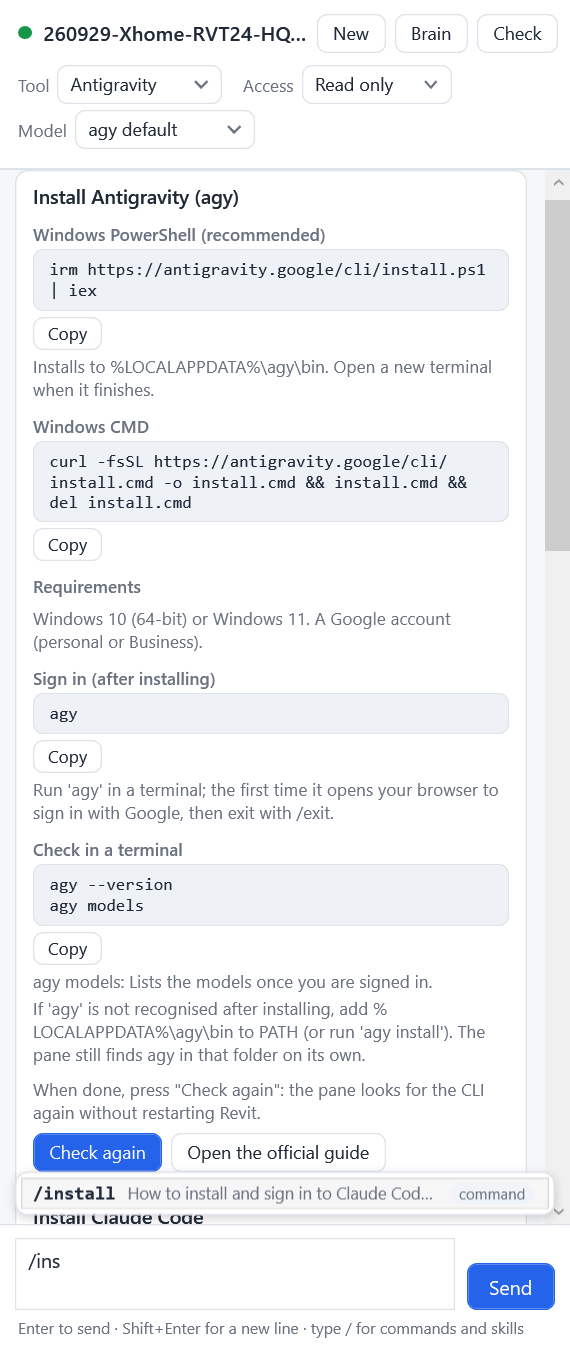
After installing, press Check again
- Install the tool with the commands above, then open a new terminal.
- Sign in once.
- In the BimSpeed AI pane, press Check again.
The pane searches again for the freshly installed tool. You do not need to close and reopen Revit.
Common problems
| Symptom | What to do |
|---|---|
| The pane says "... not found" right after installing | Open a new terminal and run <command> --version. If it works, press Check again in the pane. If the terminal cannot find it either, the install folder is not on PATH: add it to your user PATH |
The token '&&' is not a valid statement separator | You are in PowerShell but ran the CMD command. Use the PowerShell command |
'irm' is not recognized as an internal or external command | You are in CMD. Use the CMD command or open PowerShell |
irm ... | iex blocked by the execution policy | Use the CMD version. For Codex, use the exact command above with -ExecutionPolicy ByPass |
npm install fails with permission errors or EBADENGINE | Do not use Administrator rights. Claude Code's npm package needs Node.js 22 or later; or switch to the native installer |
| Signed in in a terminal but the pane says you are not | The tool must be signed in under the same Windows account that runs Revit. Run claude auth status, codex login status or agy models under that account; sign in again if the login expired |
| Antigravity rejects the model | Run agy models to see valid names, then pick one in the pane's Model box |
| Quota exhausted or 429 errors | The error comes from the model provider, not BimSpeed. Wait, or switch model or tool in the pane (/backend, Model box) |
| Not connected to Revit | Press Connect to Revit, then Check again. A model must be open |
Still stuck? Send support a screenshot of the First-run check and the output of the verify commands (--version, auth status/login status/models).