Company licenses for multiple users
If several employees need BIMSpeed with their own accounts, request a company license with the required number of seats. The account that owns the company license can add or remove employee email addresses from its profile.
The Buy online button and online checkout currently grant a personal license to the account that places the order. Selecting several tool bundles buys several tool categories for that one account; it does not buy employee seats. Contact BIMSpeed for a quote and a company license if you need centrally managed users.
1. Work out who needs access
Prepare the following before requesting a quote:
| Information | What to provide |
|---|---|
| Company and license manager | Company name and the BIMSpeed account email of the person who will manage seats |
| Number of users | Employees who need separate sign-ins; include the manager if they will use BIMSpeed in Revit |
| Tool bundles | Structural, Architectural, MEP, or the required combination |
| Term | Expected duration; confirm start and expiry dates |
| Employee emails | One email per employee, exactly as they will register and sign in |
| Billing requirements | Invoice and procurement details, if applicable |
Example: five engineers need BIMSpeed and the team lead also uses it in Revit. Request a quote for five users and confirm the assigned seat count before paying. If teams need different bundles, specify the number of people for each bundle.
2. Request a company quote
- Open BIMSpeed Pricing.
- Scroll to Need a custom solution? and select Contact us.
- Complete Name, Email, Company and Phone. The contact form may still show Vietnamese labels even if the pricing page is in English.
- In the Message field, state your seat count, bundles, term, manager email and billing requirements. For example: “ABC Company needs Structural BIMSpeed for five users for one year. License manager: manager@abc.com. Please quote a company license.”
- Submit the form and wait for BIMSpeed to confirm the quote, payment method and number of seats to be granted.
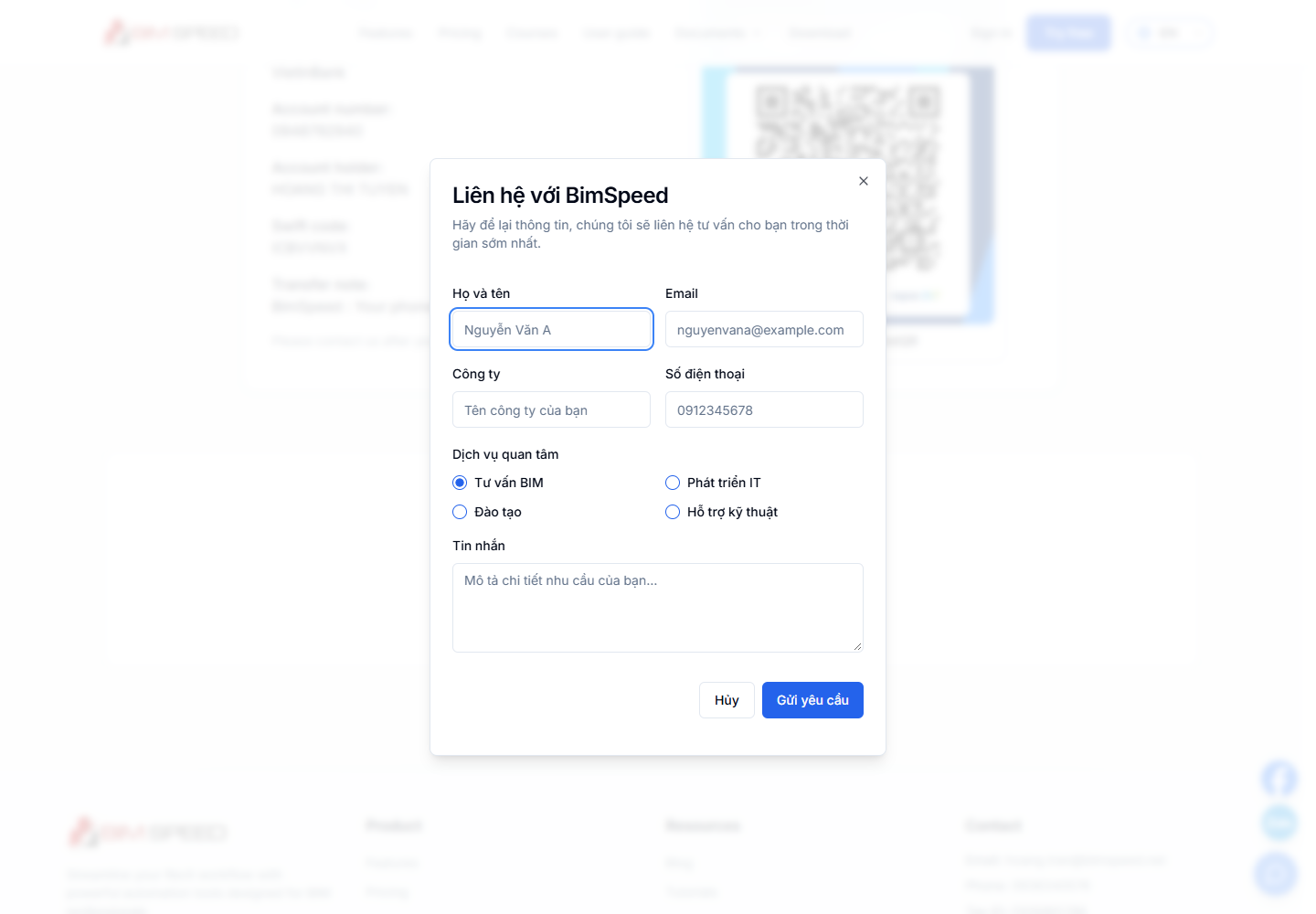
① Enter your contact details; ② describe the seat count, bundles and billing needs; ③ submit the request. Actual website on September 28, 2026; some fields remain in Vietnamese. You can also write to hoang.tran@bimspeed.net.
If employees should purchase and manage their own licenses, each can register and buy a personal license using their own account. Those separate orders do not become a seat list in the manager's profile.
3. Prepare manager and employee accounts
- The manager creates a BIMSpeed account with the email given in the company request if they do not already have one.
- Each employee creates their own BIMSpeed account using exactly the email the company will assign. Do not share one account or password.
- Each person downloads and installs BIMSpeed on the computer they will use.
- The manager waits for BIMSpeed to confirm that the Company licenses entry and seat count have been granted. Ask employees to register before adding their email; the add-member dialog also instructs this.
Adding an email to a license does not create an account or automatically invite the employee. Tell staff directly which email has been granted access.
4. Add employees to the company license
- Sign in to the BIMSpeed website with the account that owns the company license.
- Open Account profile.
- Under License information, use Refresh if the license was just granted. Find Company licenses and the correct tool bundle.
- Check that the license is Active, review its expiry, and read the Members count. It appears as added / available seats, for example 2/5.
- Click Add Member on the license you want to share.
- Enter an already registered employee's Email Address and submit Add Member. Wait for the success message.
- Confirm the email appears in the list. Repeat for each employee and each bundle they need.
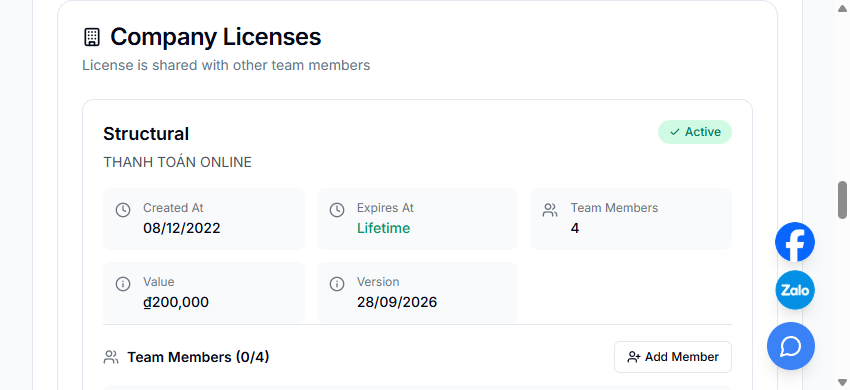
① The license is active; ② Team Members (0/4) means no one has been assigned to the four seats; ③ select Add Member on this license.
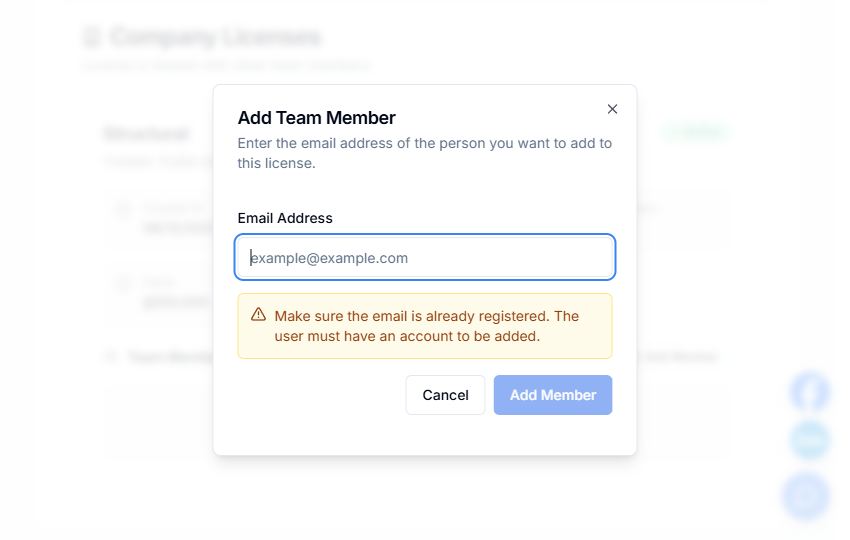
① Enter the employee's email; ② confirm they have registered for BIMSpeed; ③ check the email and license, then select Add Member.
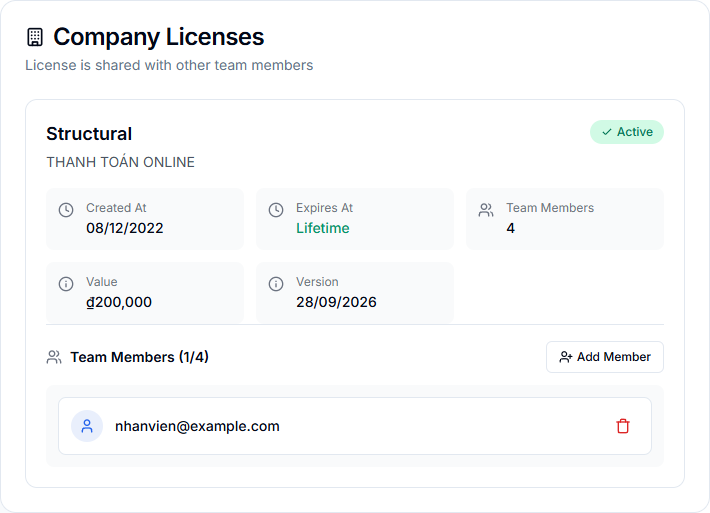
① The count changes from 0/4 to 1/4; ② the email appears in the list. The real email has been replaced with an example address for privacy.
If the company owns separate Structural, Architectural and MEP licenses, add an employee's email to each license they should use. Membership on one license does not grant the other bundles.
Add Member can be disabled when a license has expired or all seats are used. If Company licenses is empty, do not try to add staff to a Personal license; ask BIMSpeed to check the manager account and license assignment.
5. Employees use BIMSpeed
- Open the correct Revit version with BIMSpeed installed.
- Sign in using the exact email added to the company's list.
- Try a tool from the assigned bundle. If access is denied, restart BIMSpeed/Revit, sign in again and ask the manager to check the email and license dates.
- Each employee keeps their own password. They can recover it using their own inbox.
Access is checked against the member email on an active company license. An employee's profile may not show the license among licenses they own; the manager can inspect the member list in their own profile.
6. Replace people or add seats
- Employee leaves: the manager opens the relevant license in Company licenses, selects Delete member beside that email and checks the updated list.
- Replacement employee: ask the new employee to register, then add their email to an available seat. Access removal or reassignment may take time to synchronize in Revit; contact support if urgent.
- More users needed: ask BIMSpeed to increase the company license's seat count. Buying more personal orders under the manager's account does not add company seats.
- Renewal: confirm the expiry date, seats and bundles with BIMSpeed before the license expires.
Troubleshooting
| Situation | Check |
|---|---|
| No Company licenses entry | Correct manager email, BIMSpeed's grant confirmation, and Refresh |
| Add Member unavailable | License expiry, current member count and any add operation in progress |
| Adding an email fails | Spelling, employee registration and connection |
| Employee added but cannot use a tool | Revit sign-in email versus member list, the bundle and expiry; sign in again |
| More staff than seats | Ask BIMSpeed to confirm and increase the company seat count |
When contacting support, include manager email, company, bundle, seat count and the affected employee email; never include passwords. Use the BIMSpeed website or hoang.tran@bimspeed.net.