Recover your BIMSpeed password
If you already have an account but cannot remember its password, use Forgot password? on the sign-in page. You must be able to access the registered inbox.
BIMSpeed sends a new password by email. Once the request is processed successfully, sign in with the password in the email; the previous password is replaced.
1. Open password recovery
- Open BIMSpeed sign-in.
- Click Forgot password? beside the password field.
- A dialog opens with Email, Cancel and Send request.
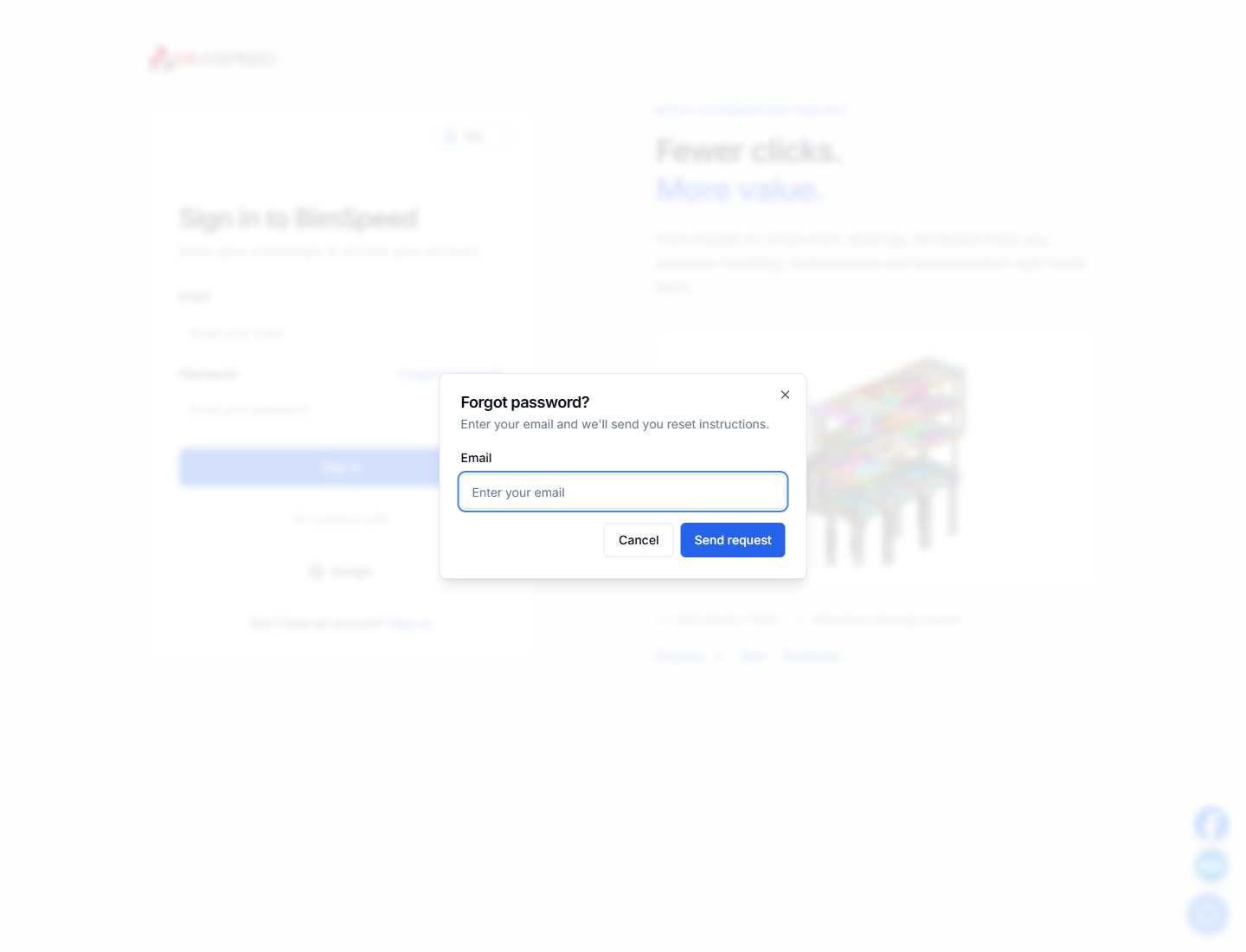
Actual interface captured on September 28, 2026, before submitting a request.
2. Request recovery for the correct email
- Enter the email of the BIMSpeed account you want to recover.
- Check spelling, domain and extra spaces.
- Click Send request once and wait for the notification.
- On success the dialog closes and the website asks you to check email. If it fails, keep the error message for troubleshooting.
Do not enter another person's email or create a replacement account for one that already has a license. If you normally use Google sign-in, you can return to sign-in and select that same Google account.
3. Find the new password
- Open the inbox you entered.
- Look for BIMspeed password reset or Cấp lại mật khẩu BIMspeed.
- Check spam, inbox categories and email filters if needed.
- Read the message and retrieve the new password. Do not share or forward the password email.
- If you sent several requests, use the message for the most recent request; passwords in earlier messages may no longer work.
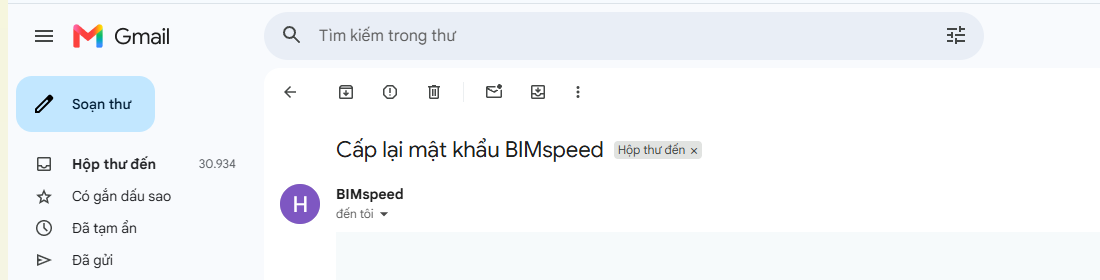
Real Gmail message captured on September 28, 2026. This image includes only the subject and sender; the password in the message body is excluded from the guide.
4. Sign in again
- Open sign-in.
- Enter your account email and the new password from the message.
- Avoid extra spaces when copying. Replace an old password automatically filled by your browser.
- Click Sign in and check your profile.
5. Choose your own password
Open your profile and select Change password:
| Field | Value |
|---|---|
| Current password | The new password received by email |
| New password | Your chosen password; the profile form requires at least eight characters |
| Confirm password | Exactly the same new password |
Submit and wait for the success notification. Update the password saved in your browser and use your chosen password for future sign-ins.
Recovery troubleshooting
| Situation | What to do |
|---|---|
| Email is not registered | Check the correct email; if you do not have an account, register |
| Invalid email | Enter the complete address with its domain and remove extra spaces |
| Email could not be sent | Wait and retry according to the message; avoid repeated clicks |
| Success notification but no email | Check the correct inbox, spam and filters; contact support if still missing |
| Emailed password does not work | Use the latest message, remove extra spaces, replace old autofill and verify the email |
| You no longer have inbox access | Contact support for account verification; recovery does not automatically change the recipient email |
Send your account email, request time and error screenshot through website chat or to hoang.tran@bimspeed.net. Never include the recovered password.